How to Change Your Instagram Password
Change your Instagram password through Accounts Center and optionally sign out other devices.
Open Settings and activity, tap Accounts Center, choose Password and security, then Change password. Select Instagram, enter the current and new passwords, and confirm.
Before you start
Choose a unique password you do not use elsewhere. Keep access to your email or phone in case Instagram asks you to verify the change.
Follow the steps
Open Accounts Center
From your profile menu, open Settings and activity and tap Accounts Center at the top.

Open Accounts Center. · Tap to enlarge Choose Password and security
In Accounts Center, tap Password and security.
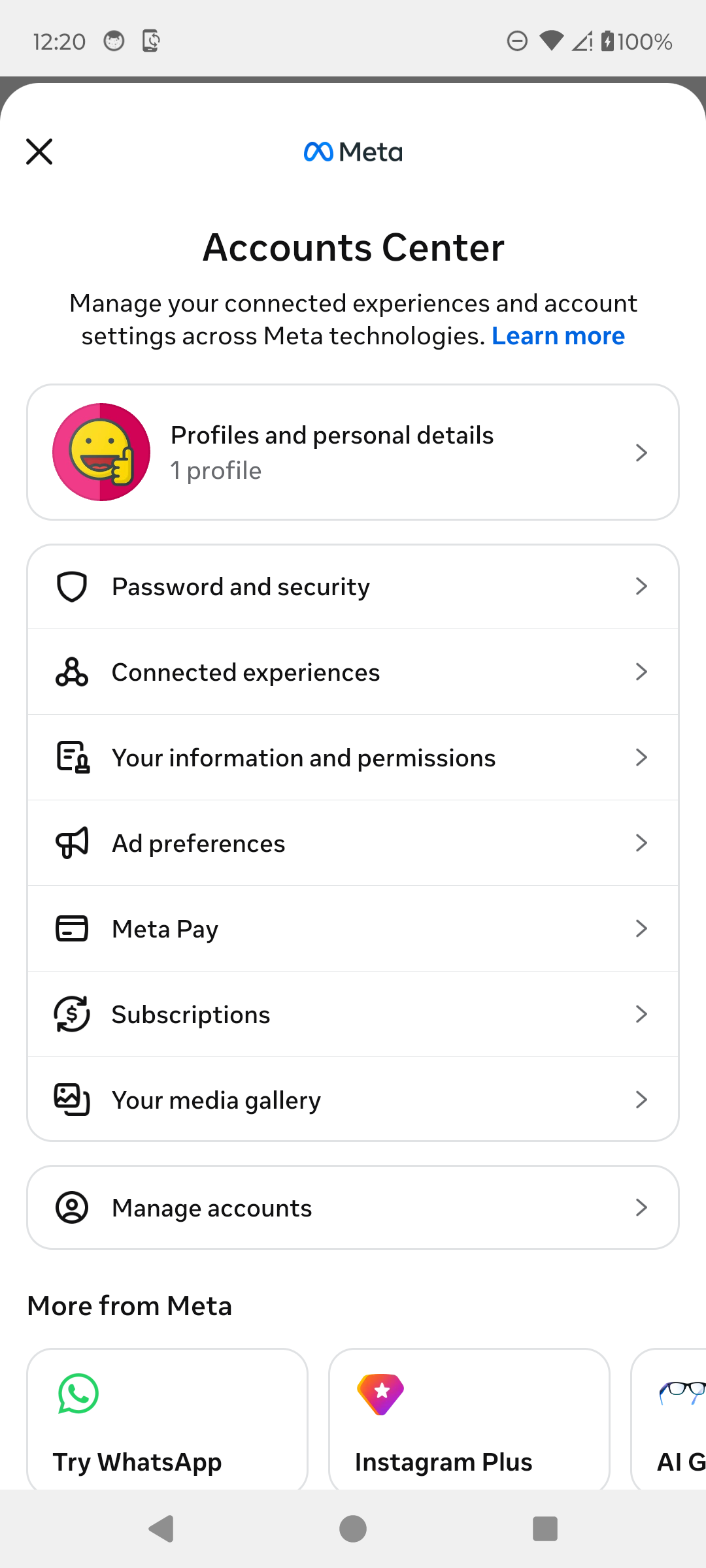
Open Password and security. · Tap to enlarge Tap Change password
Under Login and recovery, tap Change password. You can also review two-factor authentication and logged-in devices here.
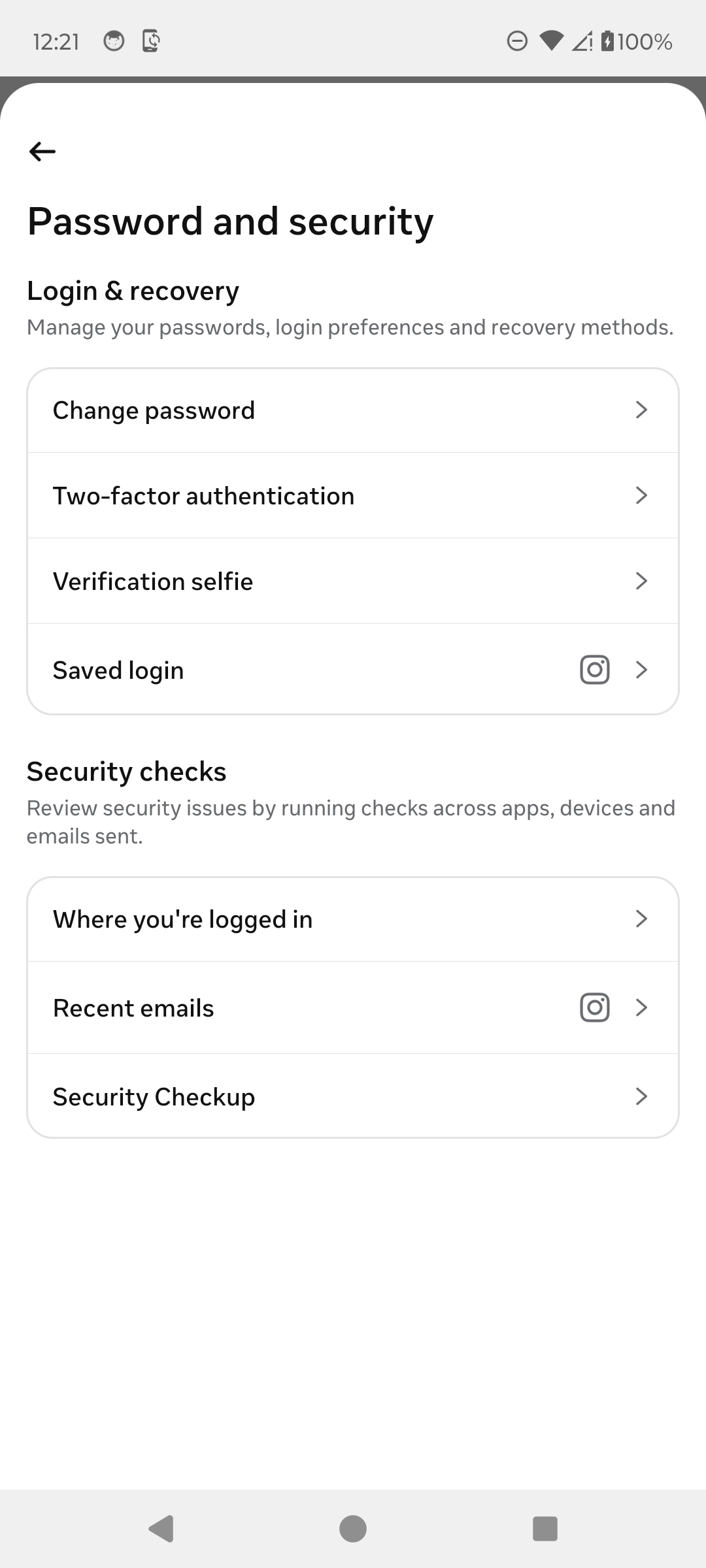
Choose Change password. · Tap to enlarge Select Instagram
If Accounts Center contains more than one profile, select the Instagram account you want to update.
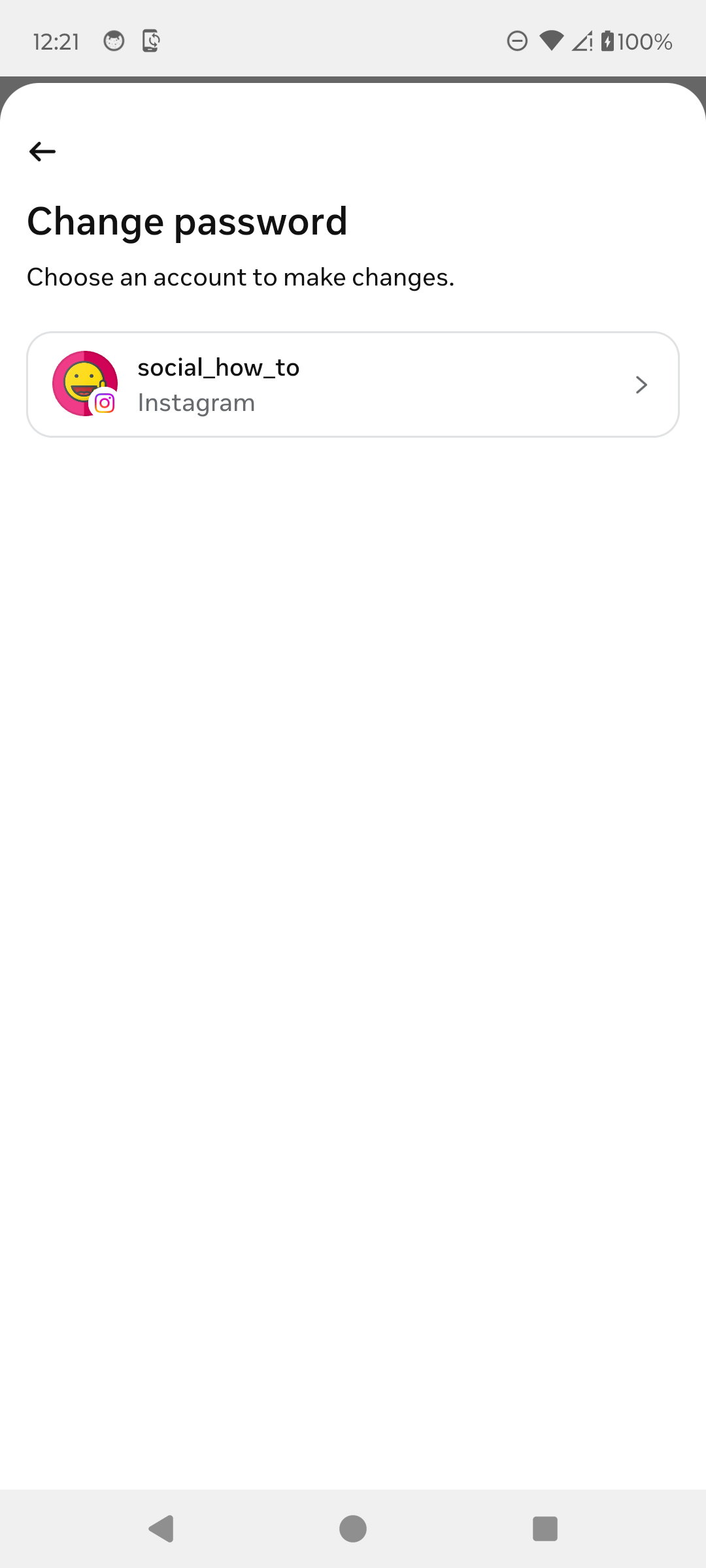
Select the correct Instagram profile. · Tap to enlarge Enter and confirm the new password
Enter the current password, type the new password twice, decide whether to log out other devices, then tap Change password.
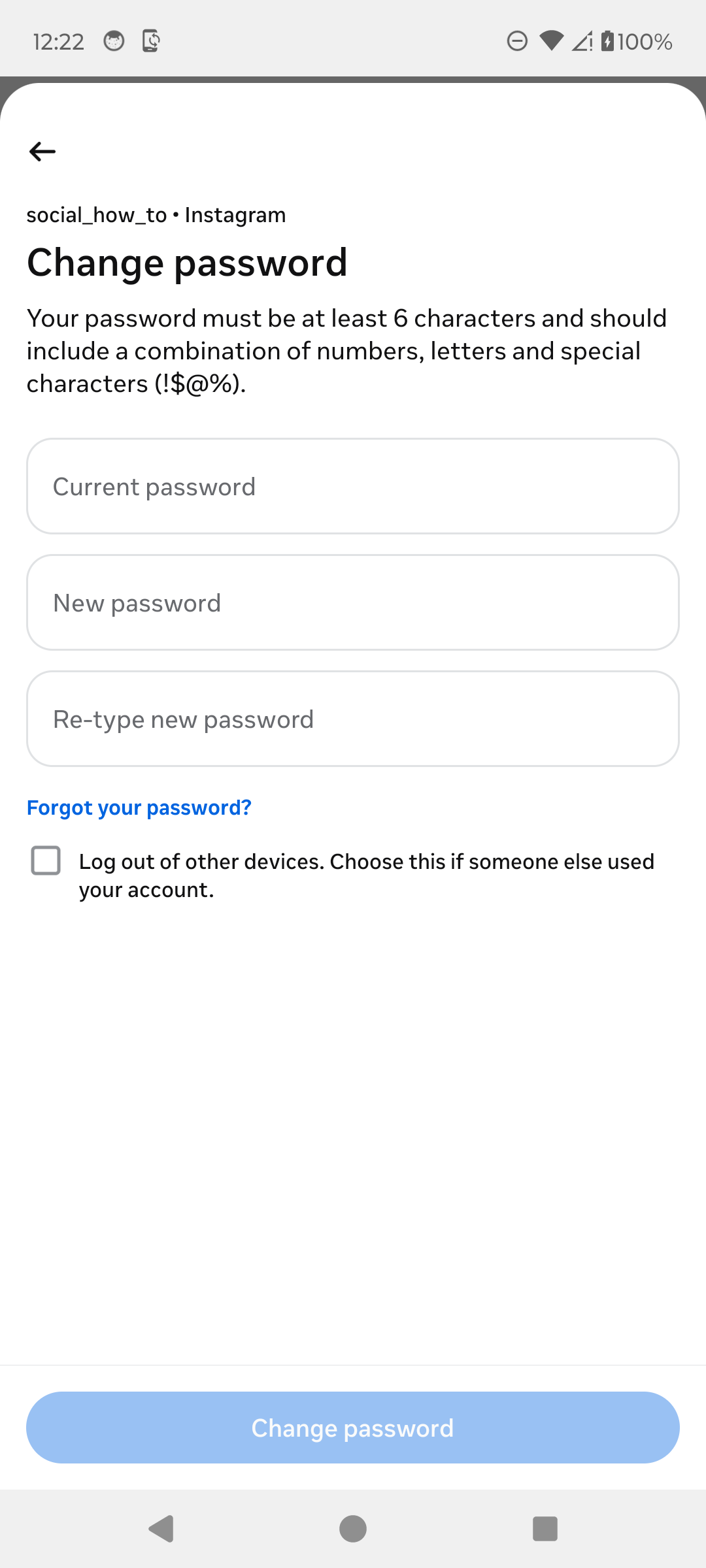
Complete the form without sharing the password. · Tap to enlarge
A couple of useful details
What if I forgot my current password?
The Change password form includes Forgot your password? for account recovery.
How long must the password be?
The current form requires at least six characters and recommends numbers, letters, and special characters. A longer unique password is safer.
Should I log out other devices?
Use that option if someone else may have accessed the account, then review Where you’re logged in under Password and security.
Something not quite right?
Help us keep this guide accurate. A quick flag is enough.
Your report is sent to the Social How-To editorial team.