How to Delete Your Instagram Account
Permanently remove your Instagram profile and its content. Check the difference between deletion and temporary deactivation before you continue.
Open Accounts Center from Instagram, choose Manage accounts, open Deactivation or deletion, then select Delete account and continue.
Before you start
Deleting an Instagram account is permanent and removes its profile, photos, videos, comments, likes and followers. Export anything you want to keep first, and read the cancellation deadline Instagram shows during confirmation.
Follow the steps
Open your profile menu
Tap your profile picture at the bottom right, then the three-line menu at the top right.

Open your profile menu. · Tap to enlarge Open Manage accounts
Tap Accounts Center near the top of Settings and activity, then tap Manage accounts.
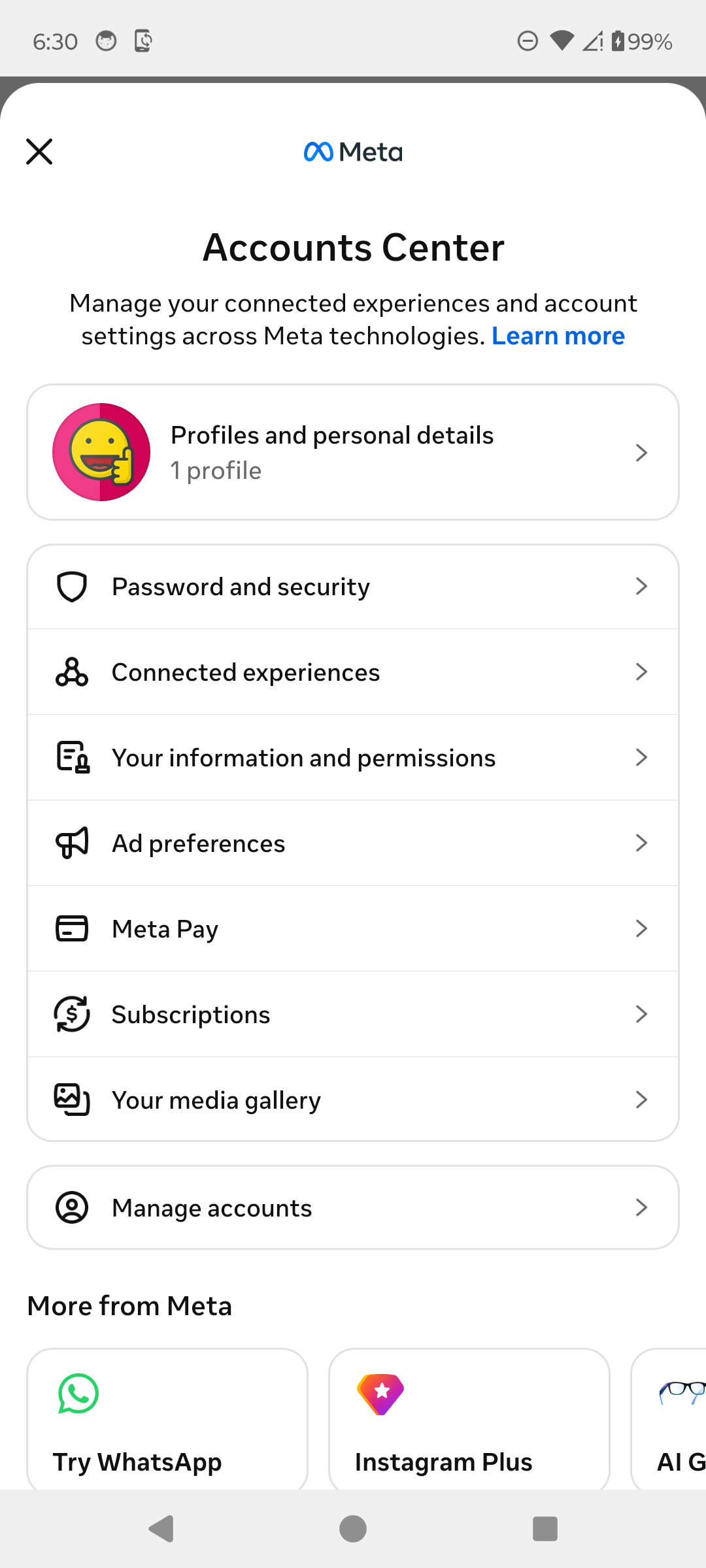
Open Manage accounts. · Tap to enlarge Open Deactivation or deletion
Tap Manage next to your Instagram account, then tap Deactivation or deletion.
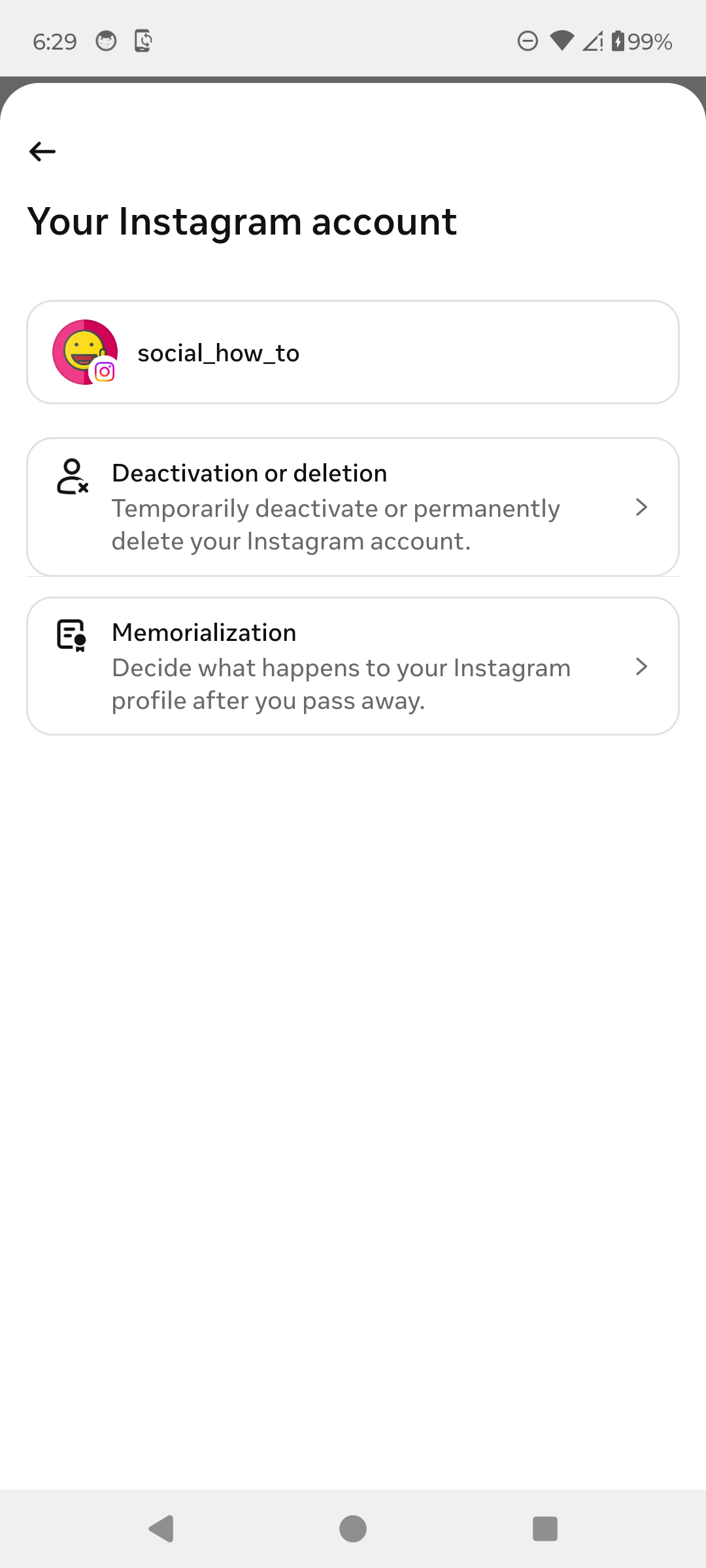
Choose Deactivation or deletion. · Tap to enlarge Choose Delete account
Select Delete account, tap Continue, then read each confirmation carefully. Instagram will show the deadline for cancelling the request before permanent deletion.
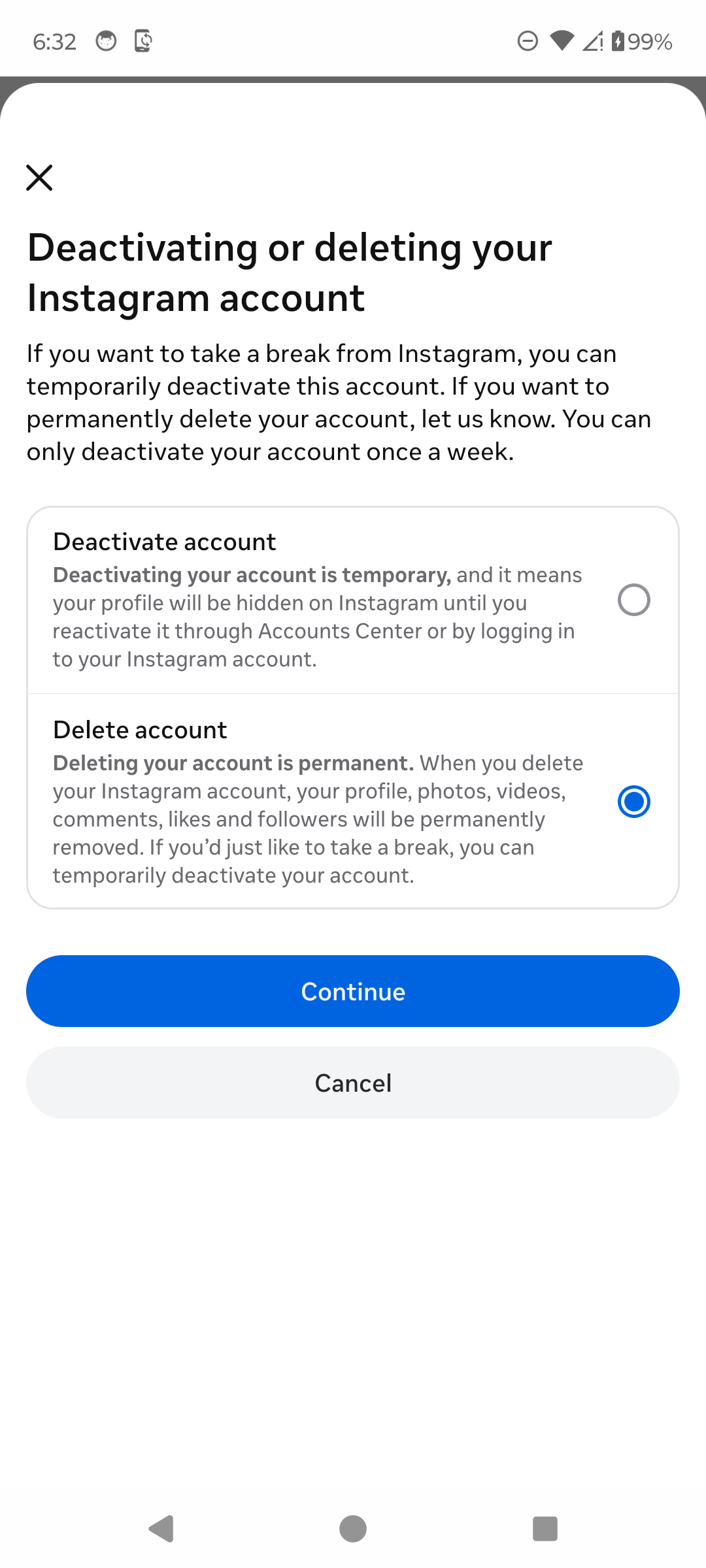
Select Delete account, then continue. · Tap to enlarge
A couple of useful details
Is deleting Instagram the same as deactivating it?
No. Deactivation temporarily hides the account. Deletion permanently removes the account and its content after Instagram’s cancellation period.
Can I save my Instagram information first?
Yes. Request an export of the information you want to keep before starting deletion.
Can I cancel after requesting deletion?
Instagram shows the applicable cancellation deadline during the confirmation process. Log back in before that deadline and follow the on-screen option to keep the account.
Something not quite right?
Help us keep this guide accurate. A quick flag is enough.
Your report is sent to the Social How-To editorial team.