How to Repost a Video on TikTok
Share another creator’s video with your friends and community using TikTok’s Repost action.
Open the video, tap Share, then tap Repost. TikTok applies the repost immediately.
Before you start
Reposting does not create a new copy of the video. TikTok labels the original video as reposted and may show it to your friends and community.
Follow the steps
Open the video
Find the video you want to share and open it.
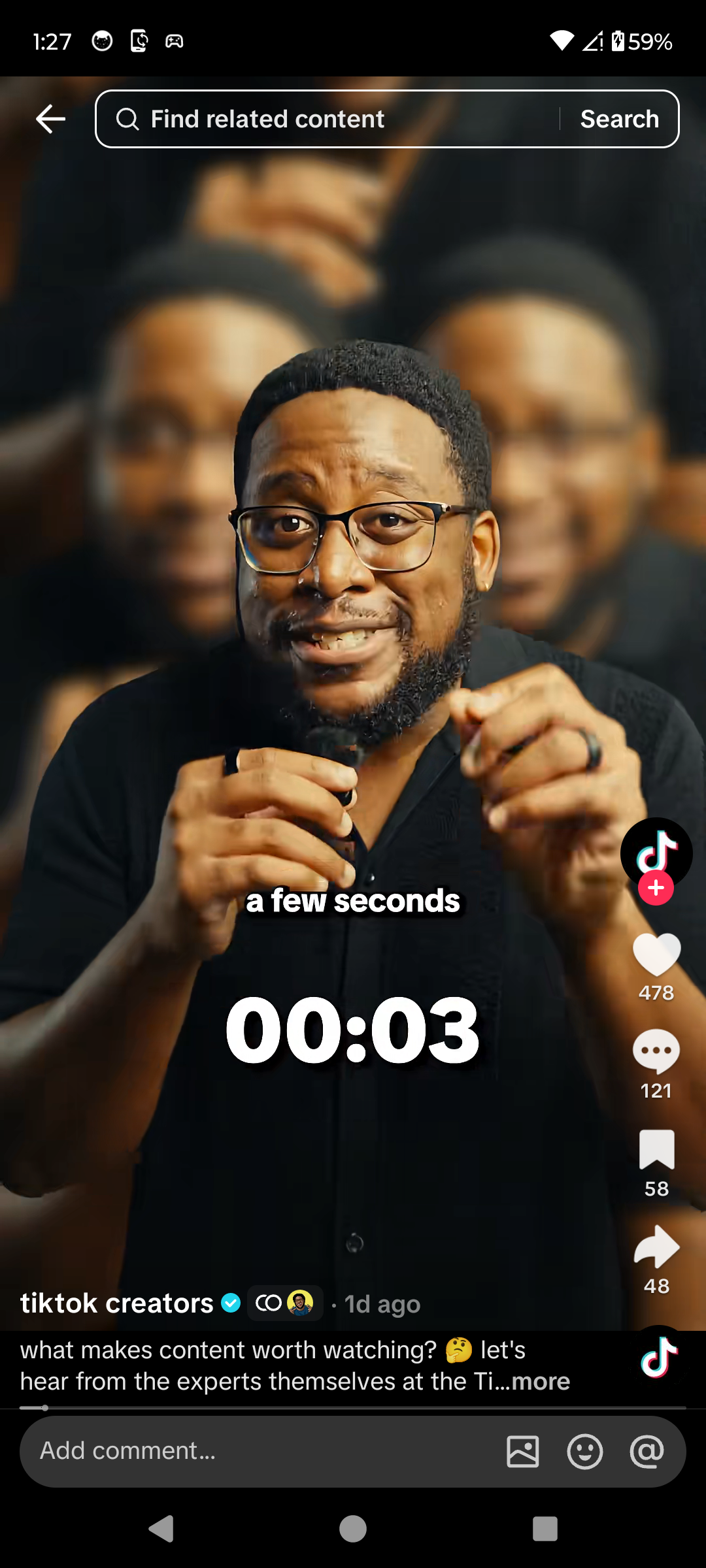
Open the video you want to repost. · Tap to enlarge Open the Share menu
Tap the Share arrow on the right side of the video.

Find Repost in the Share menu. · Tap to enlarge Tap Repost
Tap Repost. TikTok applies it immediately and may show a confirmation the first time.
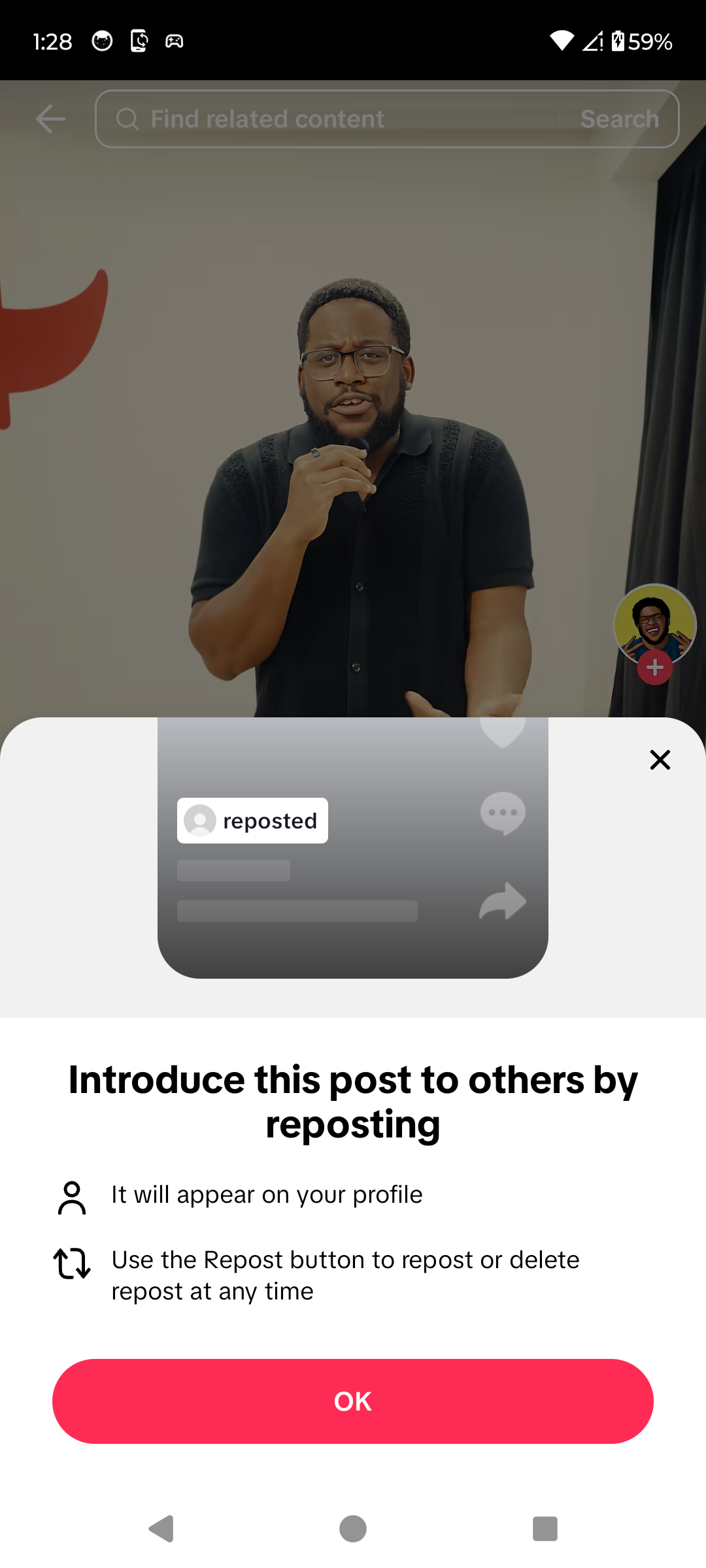
The video is now reposted. · Tap to enlarge
A couple of useful details
Where can I find my reposts?
Open your profile and select the Repost tab. Availability and visibility can depend on your account settings.
How do I remove a repost?
Open the reposted video, tap Share, then tap Delete repost or Remove repost.
Does the creator keep the original post?
Yes. A repost shares the creator’s existing video rather than uploading a separate copy.
Something not quite right?
Help us keep this guide accurate. A quick flag is enough.
Your report is sent to the Social How-To editorial team.