How to Edit and Trim a TikTok Video
Upload a video, open TikTok's timeline editor, and shorten the beginning or end before posting.
Tap Add post +, upload a video, tap Edit, select the clip in the timeline, and drag either white edge inward to trim it.
Before you start
Keep an original copy of the video on your device. Trimming in TikTok changes the version prepared for the post, and other editing tools can affect sound, speed, framing, and clip order.
Follow the steps
Open TikTok's upload screen
Tap Add post +, then tap the gallery thumbnail to upload an existing video.

Open the upload picker. · Tap to enlarge Choose a video
Open Videos, select the clip you want to edit, then tap Next.

Choose a video and tap Next. · Tap to enlarge Open the editing tools
On the preview screen, tap Edit on the right to open the timeline editor.

Tap Edit to open the timeline. · Tap to enlarge Select the clip in the timeline
Tap the video clip in the timeline. TikTok shows the clip handles and tools such as Split, Replace, Delete, Speed, and Crop.

Select the clip in the timeline. · Tap to enlarge Trim the beginning or end
Drag the white handle at either end of the clip inward. Preview the result and check the updated duration, then tap the arrow at the top right.
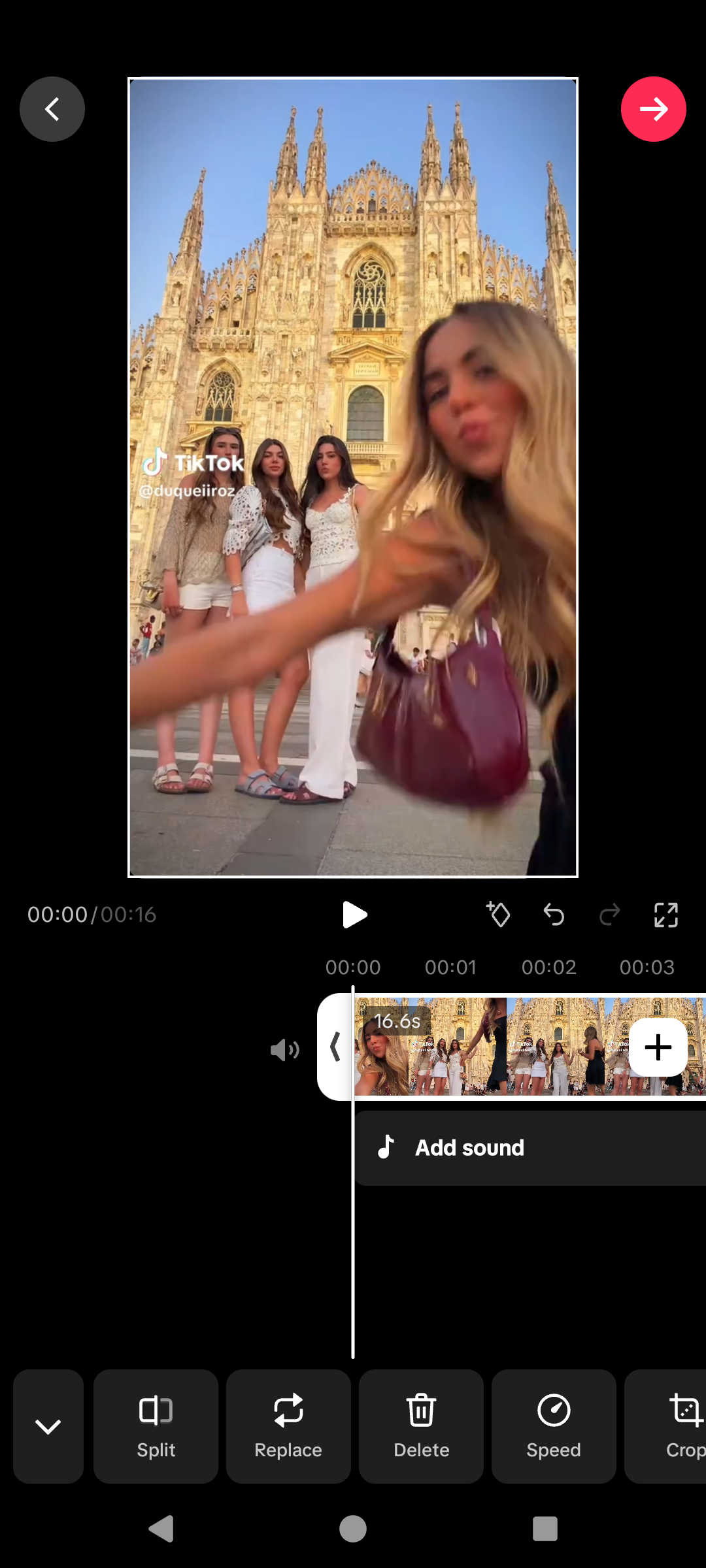
Drag a clip edge to trim the video. · Tap to enlarge Review before posting
Add a description, cover, audience, and privacy settings. Tap Post only when you are ready, or go back to discard the edit.
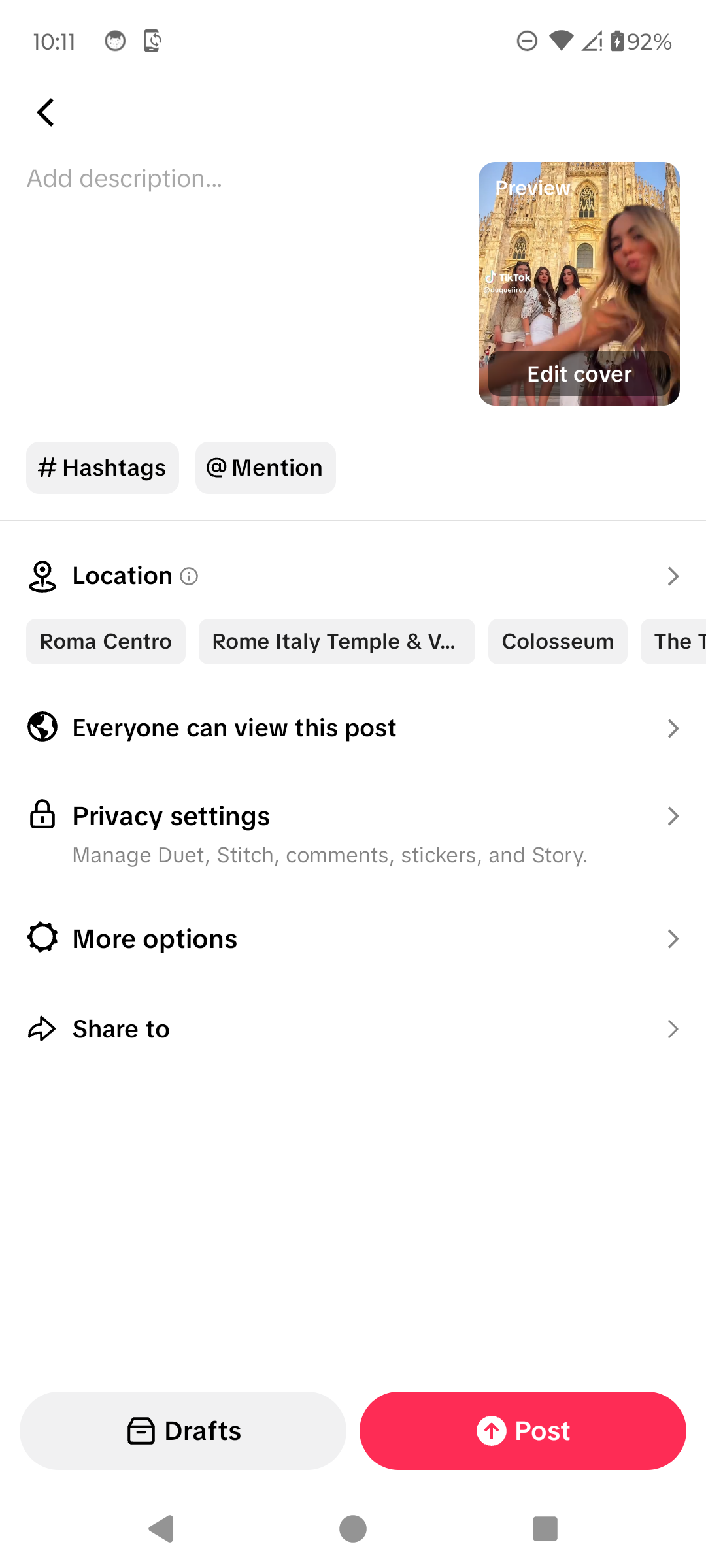
Review the edited video before posting. · Tap to enlarge
A couple of useful details
Can I trim both ends of a TikTok video?
Yes. Select the clip and drag the left or right timeline handle inward to shorten the beginning or end.
Can I cut a section from the middle?
Use Split at the start and end of the unwanted section, select that segment, then use Delete.
Can I undo a trim?
Use the editor's undo control when available, or move the clip handle back before leaving the editor.
Does editing publish the video?
No. Editing prepares the video. It is published only after you reach the final screen and confirm Post.
Something not quite right?
Help us keep this guide accurate. A quick flag is enough.
Your report is sent to the Social How-To editorial team.