How to Make a Photo Slideshow on TikTok
Select multiple photos, arrange them into a TikTok slideshow, add creative elements, and review the post settings.
Tap Add post +, open the gallery, choose Photos and Select multiple, select at least two photos, then tap Next to edit and prepare the slideshow.
Before you start
Choose photos you own or have permission to use. Check every image for private information before uploading, and review the audience setting before posting.
Follow the steps
Open the upload picker
Tap the Add post + button, then tap the gallery thumbnail at the bottom left.

Open the TikTok gallery picker. · Tap to enlarge Turn on multiple selection
In the gallery, open Photos and tap Select multiple at the bottom.
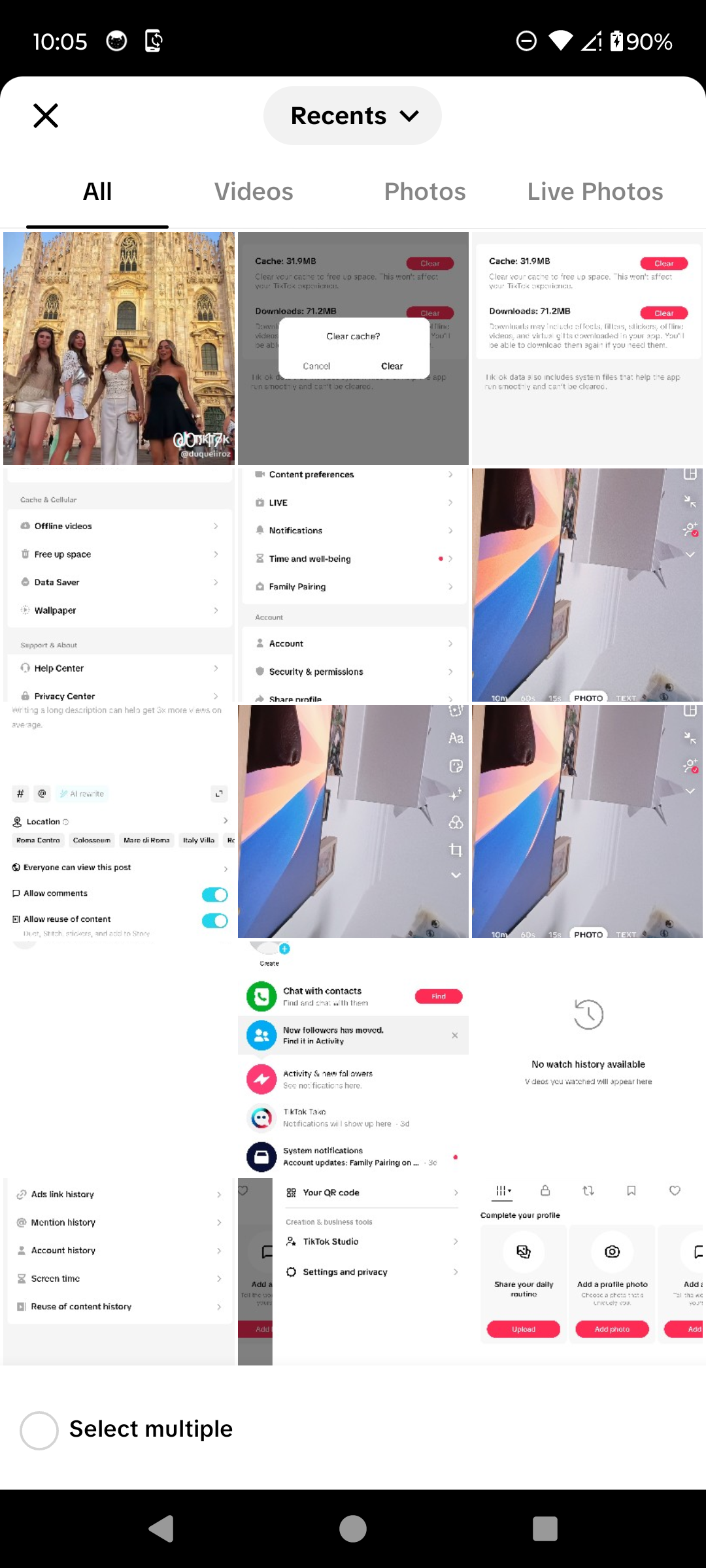
Choose Select multiple. · Tap to enlarge Choose two or more photos
Tap the photos in the order you want them to appear, then tap Next.
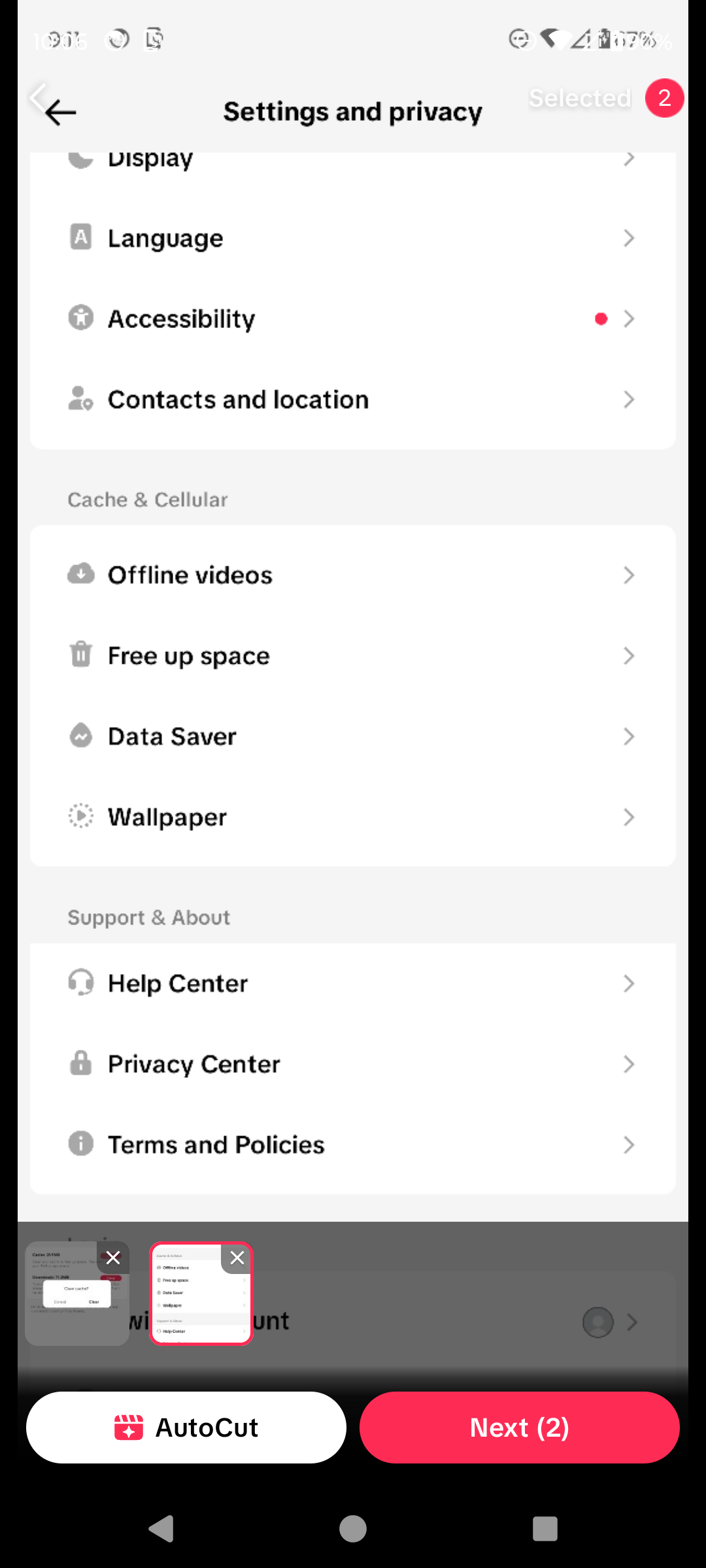
Select the photos and tap Next. · Tap to enlarge Edit the slideshow
Preview the photo sequence. Add sound, text, stickers, filters, or more photos, and rearrange the images if needed.

Edit and preview the slideshow. · Tap to enlarge Review the post settings
Tap Next, add a title or description, choose the audience and interaction settings, then tap Post only when you are ready.
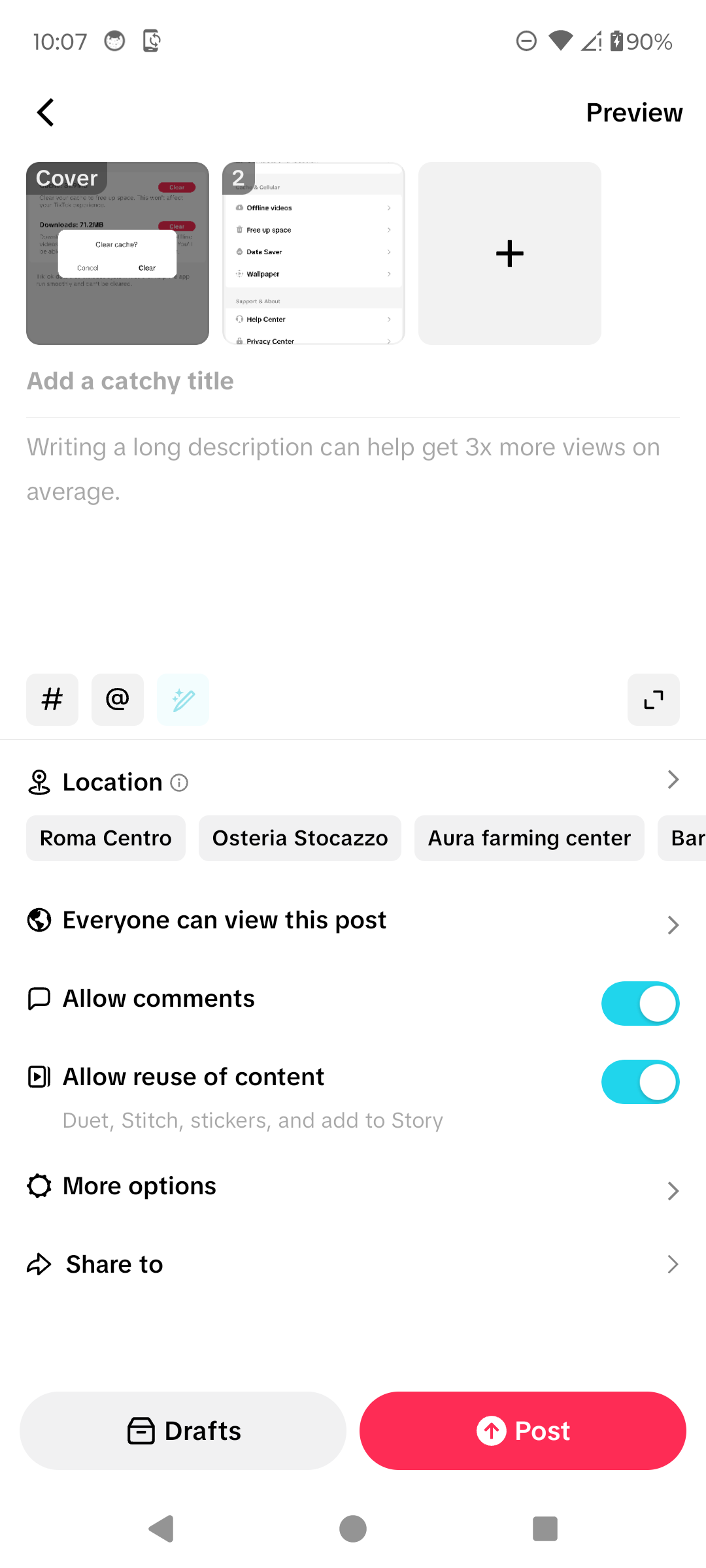
Review the slideshow before posting. · Tap to enlarge
A couple of useful details
How many photos do I need for a TikTok slideshow?
Select at least two photos to create a multi-photo post or slideshow.
Can I change the order of the photos?
Yes. Review the selected thumbnails in the editor and rearrange them before posting when the current editor provides that control.
Can I add music and text?
Yes. The photo editor provides controls for sound, text, stickers, effects, and filters.
Do I have to publish immediately?
No. You can return and discard the post, or tap Drafts on the final screen to save it privately on that device.
Something not quite right?
Help us keep this guide accurate. A quick flag is enough.
Your report is sent to the Social How-To editorial team.