How to Turn Off Facebook Notifications
Reduce Facebook alerts by topic and delivery method, or turn off all Facebook push notifications in Android settings.
Open Menu, expand Settings and privacy, tap Settings, and choose Notifications. Open a notification topic to turn off Push, Email, or SMS for that topic. To stop every Facebook push alert on Android, scroll to Where you receive notifications, open Push, continue to Android settings, and turn off All Facebook notifications.
Before you start
Facebook separates notifications by topic and by delivery method. Turning off Push for one topic does not turn off Email or SMS, and it does not affect other topics. Facebook may still send important account or content notices outside your preferred notification settings.
Follow the steps
Open Facebook settings
Tap Menu, expand Settings and privacy, and tap Settings. Under Preferences, choose Notifications.
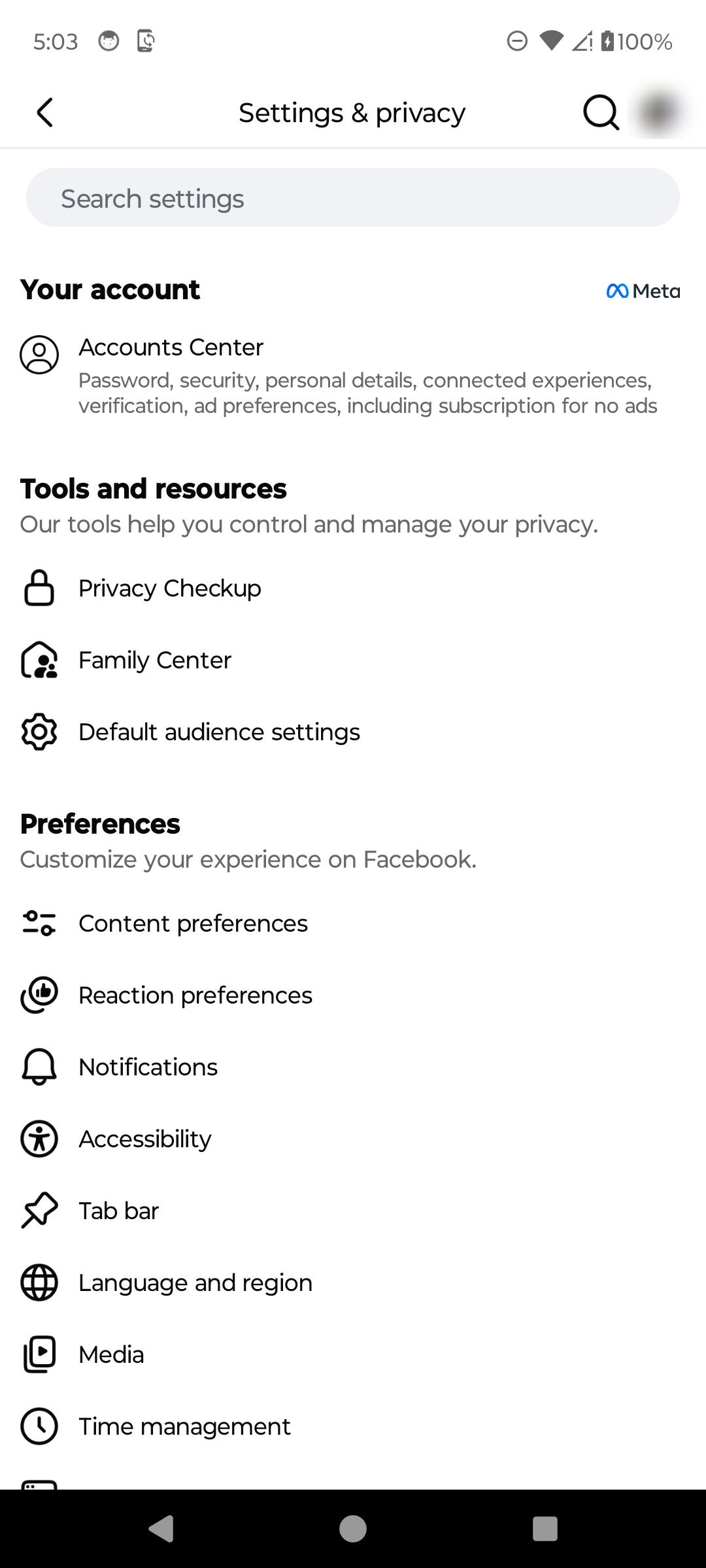
Open Facebook notification settings. · Tap to enlarge Choose a notification topic
Under What notifications you receive, open the topic you want to change, such as Comments, Tags, Birthdays, Groups, or Marketplace.
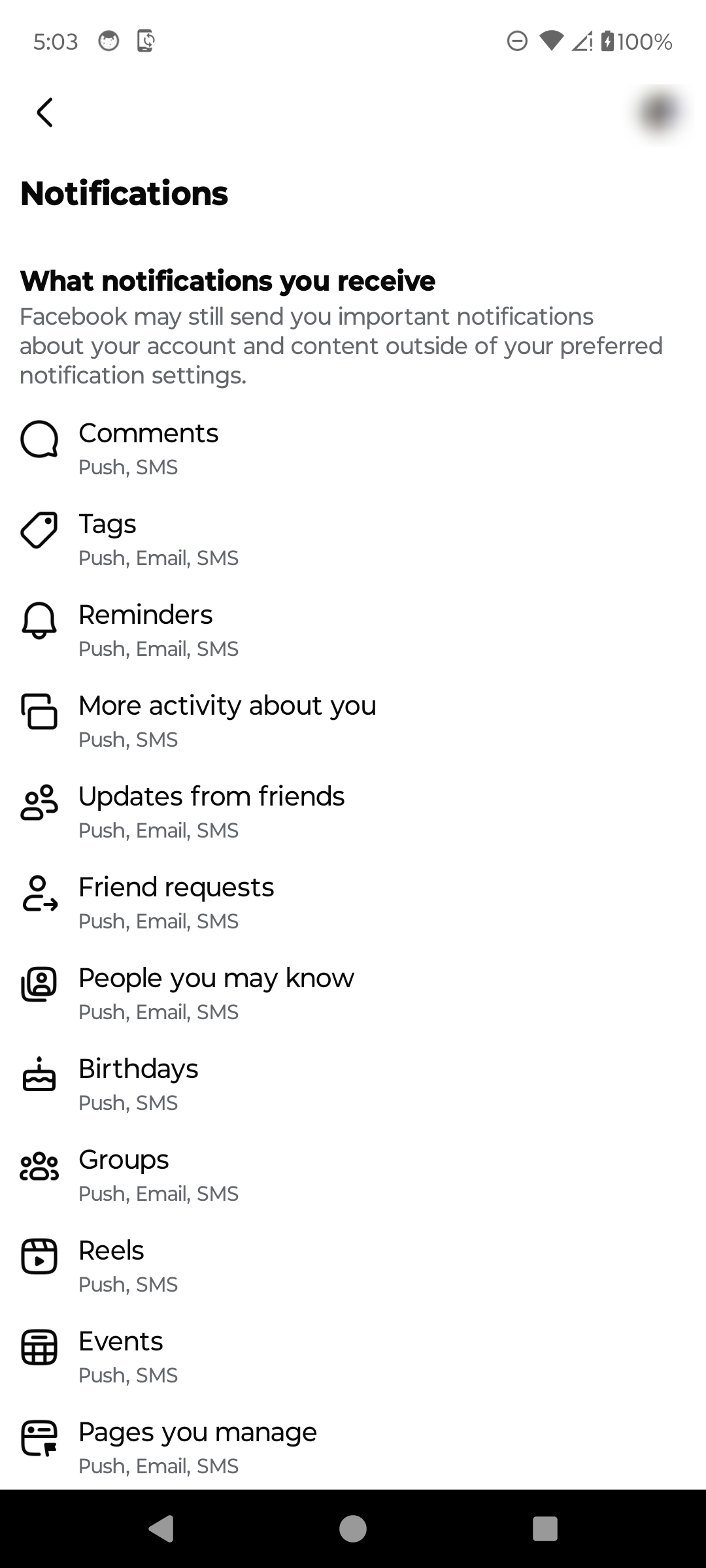
Choose the type of notification to change. · Tap to enlarge Turn off the unwanted delivery methods
Turn off Push, Email, or SMS for that topic. Repeat this for any other topics you want to silence.

Choose where Facebook may send this notification. · Tap to enlarge Review the general delivery settings
Return to Notifications and scroll to Where you receive notifications. Open Push, Email, or SMS to review the general delivery settings available for your account.

Review the general delivery settings. · Tap to enlarge Turn off all Facebook push notifications
Open Push and continue to Android's app-notification settings. Turn off All Facebook notifications. Android labels can vary by phone manufacturer and version.

Use Android settings to stop every Facebook push alert. · Tap to enlarge
A couple of useful details
Can I turn off only one type of Facebook notification?
Yes. Open a topic such as Comments, Tags, Birthdays, Groups, or Marketplace and turn off only the delivery methods you do not want.
What is the difference between Push, Email, and SMS?
Push notifications appear through the Facebook app, Email messages go to an email address connected to the account, and SMS messages are sent as text messages when that option is available.
How do I stop all Facebook notifications on Android?
Open the Push section from Facebook's notification settings and continue to the Android app-notification screen. Turn off All Facebook notifications. The exact Android label can vary by phone.
Why do I still receive an important Facebook notice?
Facebook says it may still send important notifications about your account and content outside your preferred notification settings.
Something not quite right?
Help us keep this guide accurate. A quick flag is enough.
Your report is sent to the Social How-To editorial team.