How to Post on Facebook and Choose Who Can See It
Create a Facebook post, add text or media, choose the audience, and review the final settings before you publish.
Tap What's on your mind? at the top of Feed, add your text or media, and tap Next. Open Post audience, choose who can see the post, tap Done, then review the preview and tap Post when you are ready.
Before you start
Check which Facebook profile you are using and look over the post for names, locations, or other personal information. Public means anyone on or off Facebook may be able to see it. The audience shown in this guide is Only me, and the demonstration post was discarded without being published.
Follow the steps
Start a new post
From Feed, tap What's on your mind? to open the post composer.

Open the Facebook post composer. · Tap to enlarge Add the content
Write your text and use the available controls if you want to add photos, video, people, a location, or another post element. Tap Next.
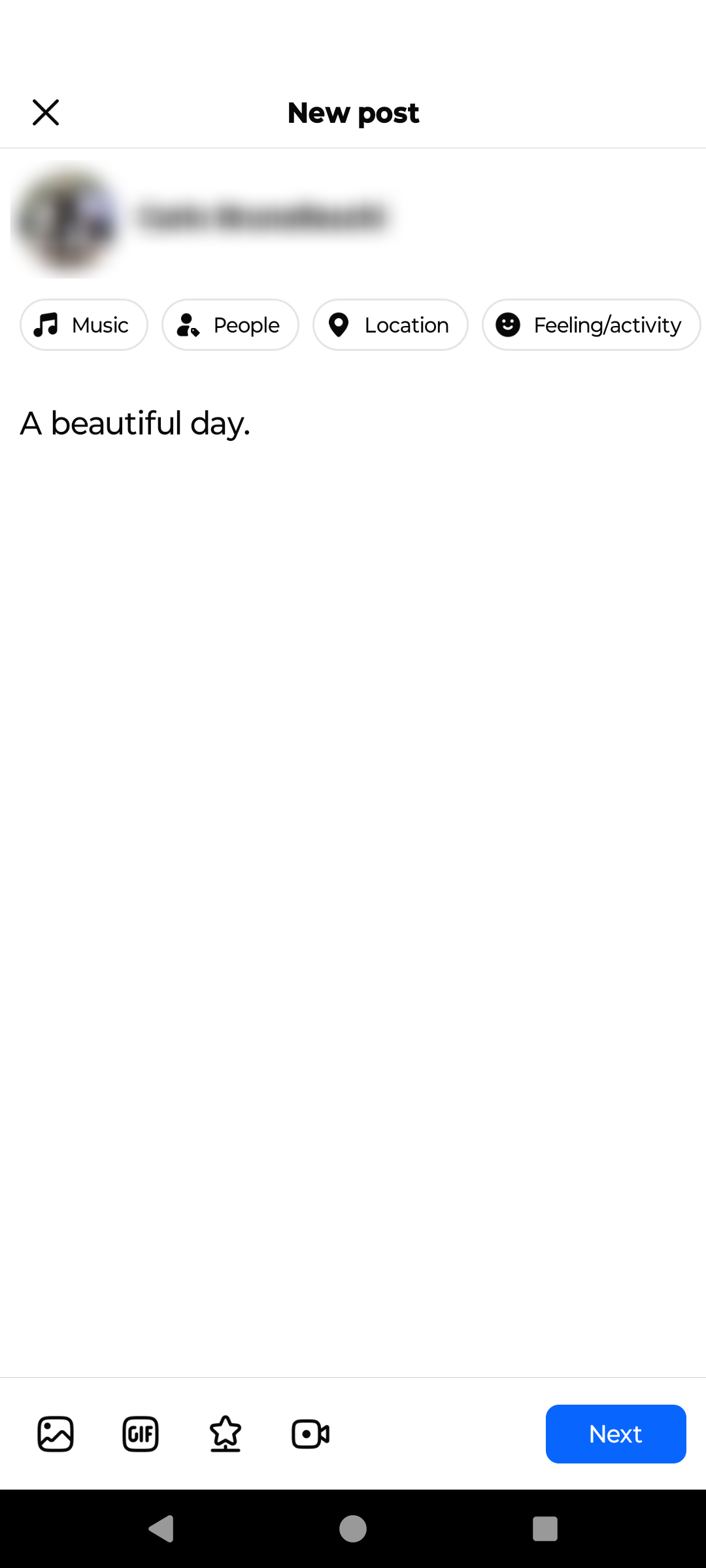
Add text or media, then continue. · Tap to enlarge Choose who can see the post
Open Post audience and select an option such as Public, Friends, Friends except, or Only me. Read the description for the audience before you choose it, then tap Done.
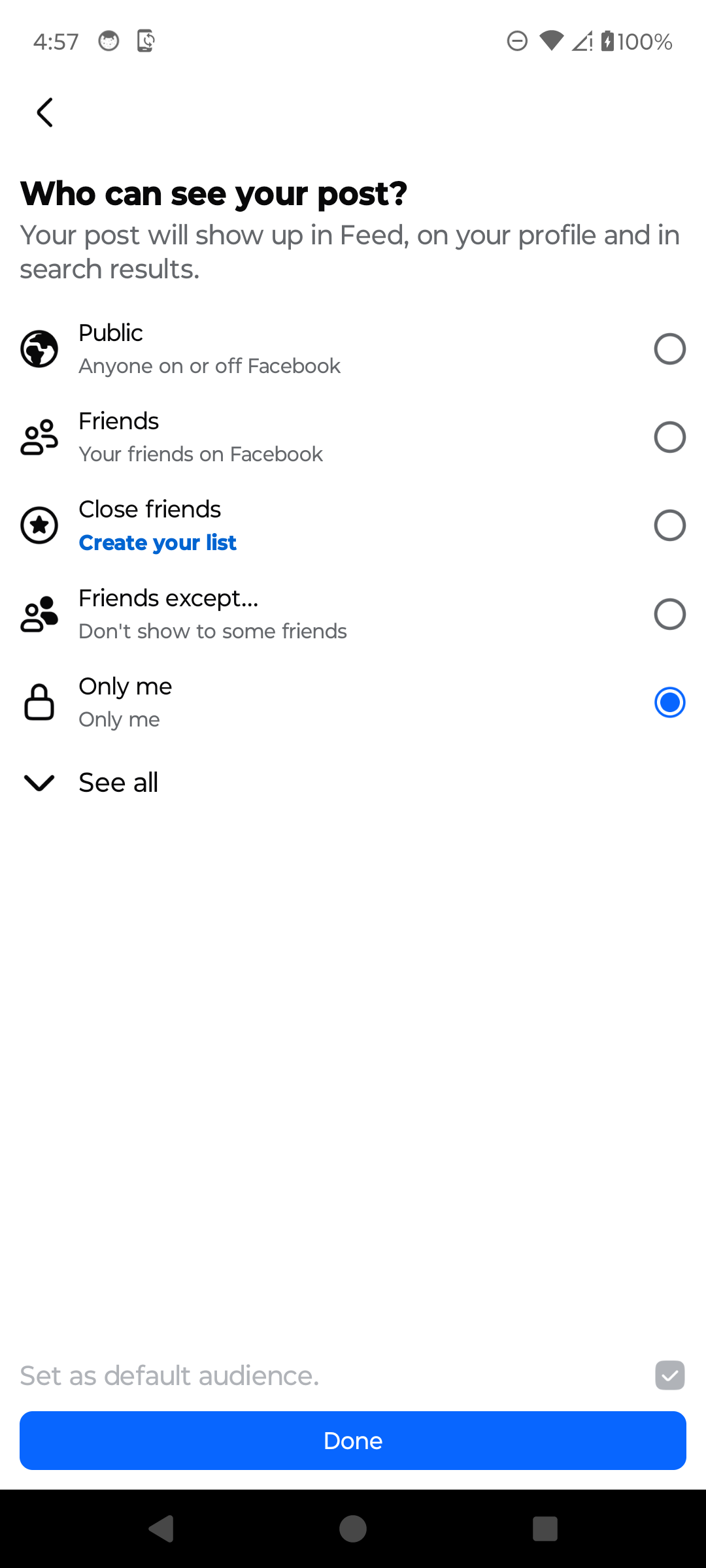
Choose the audience for the post. · Tap to enlarge Review and publish
Check the preview, the selected audience, and any other settings. Tap Post only when everything is correct.
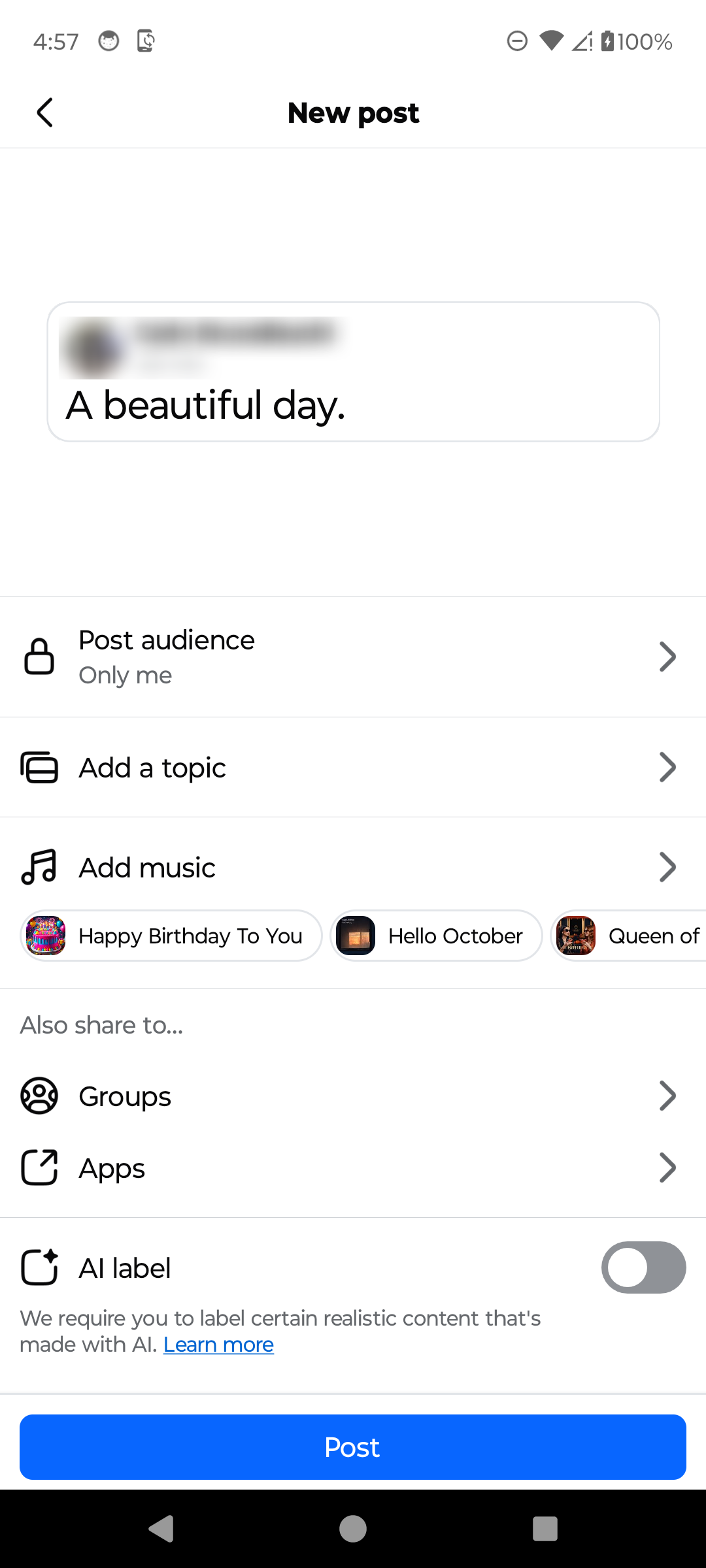
Review the post before publishing. · Tap to enlarge
A couple of useful details
What does Public mean on Facebook?
Facebook describes Public as anyone on or off Facebook. Use Friends, Only me, or a more limited custom audience when the post should not be public.
Can I choose a different audience for one post?
Yes. Open Post audience before publishing and choose the audience for that post. Facebook may also offer an option to make the selection your default audience.
Can I save the post instead of publishing it?
When you close an unfinished post, Facebook may offer Save as draft. Draft behavior can vary by device and post type.
Can I add photos or videos?
Yes. Use the gallery button in the composer, select the media, and review it before continuing.
Something not quite right?
Help us keep this guide accurate. A quick flag is enough.
Your report is sent to the Social How-To editorial team.