How to Make a Facebook Post Shareable
Choose a Public audience so people beyond your friends can see and share a Facebook post.
For an existing post on your profile, open its three-dot menu, tap Edit Privacy, choose Public, and tap Save when ready. For a new post, open Post audience before publishing. Public allows anyone on or off Facebook to see the post; other sharing restrictions can still apply.
Before you start
A post generally needs a Public audience for people outside its original audience to share it. Review the text, photos, location, tags, and personal information carefully because Public means anyone on or off Facebook may see the post. A locked profile may prevent you from choosing Public.
Make an existing post shareable
Find the post on your own profile, open its three-dot menu, and tap Edit Privacy. On Who can see your post?, choose Public, described as Anyone on or off Facebook. Tap Save only when you are ready to change the audience, then check the audience label on the post again.
This menu and the Public option were checked on an existing post. The screenshots below document the separate new-post flow. If Edit Privacy is missing, check whether you own the original post and whether it was posted in a group; the available controls may differ.
Public audience and the Share button are different checks
Public describes who can see the post. If sharing is still unavailable, the content type, group rules, profile settings, or the original creator's audience may limit it. Changing your own audience is not a way to override those restrictions.
For someone else's post, ask the original author to review its audience. For a group post, check the group's privacy and sharing rules before assuming that the public-profile procedure applies.
Make a new post shareable
Prepare the post
Tap What's on your mind? and add the text, photo, video, or link you want to share. Tap Next when the content is ready.
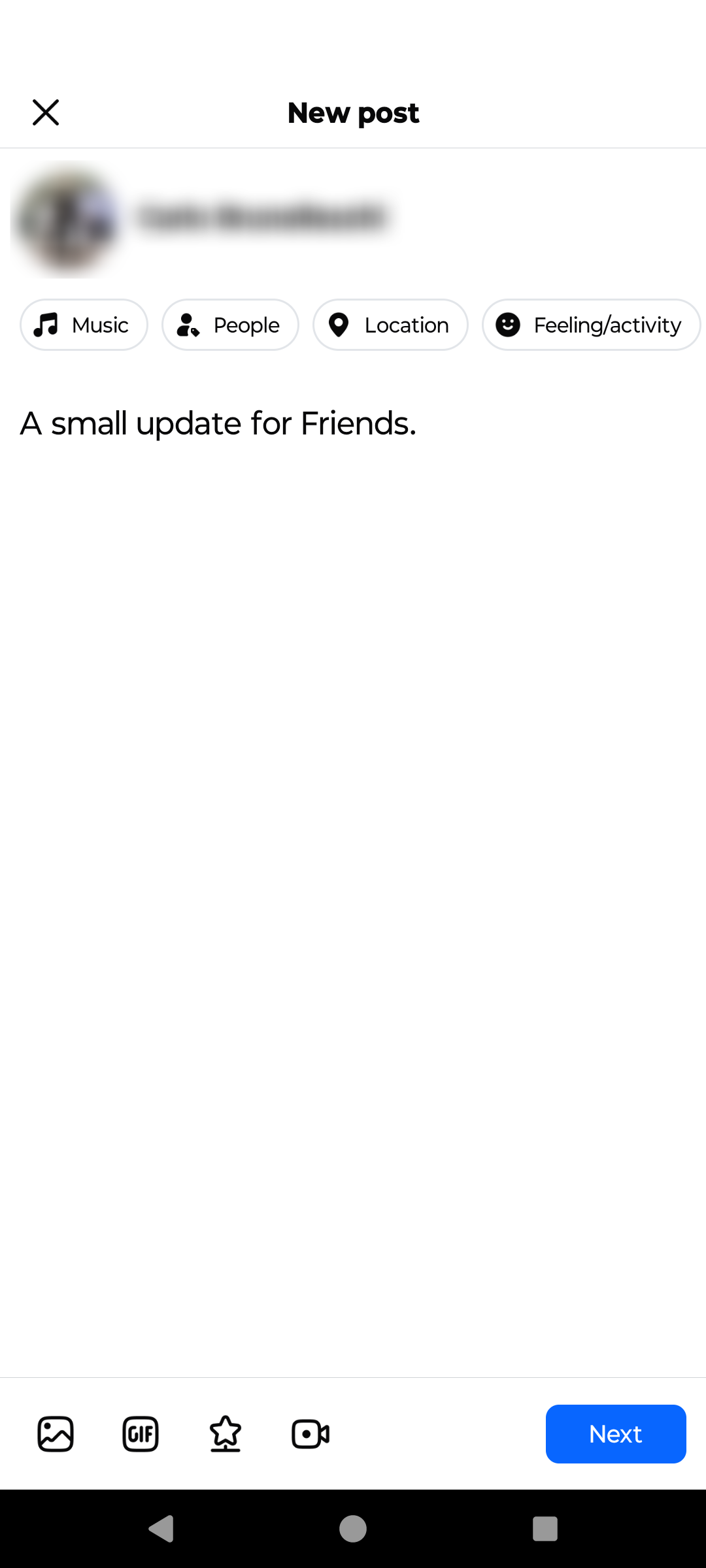
Prepare the post and continue. · Tap to enlarge Open Post audience
On the final New post screen, find Post audience. If it shows Only me, Friends, or another limited audience, tap it to change who can see the post.
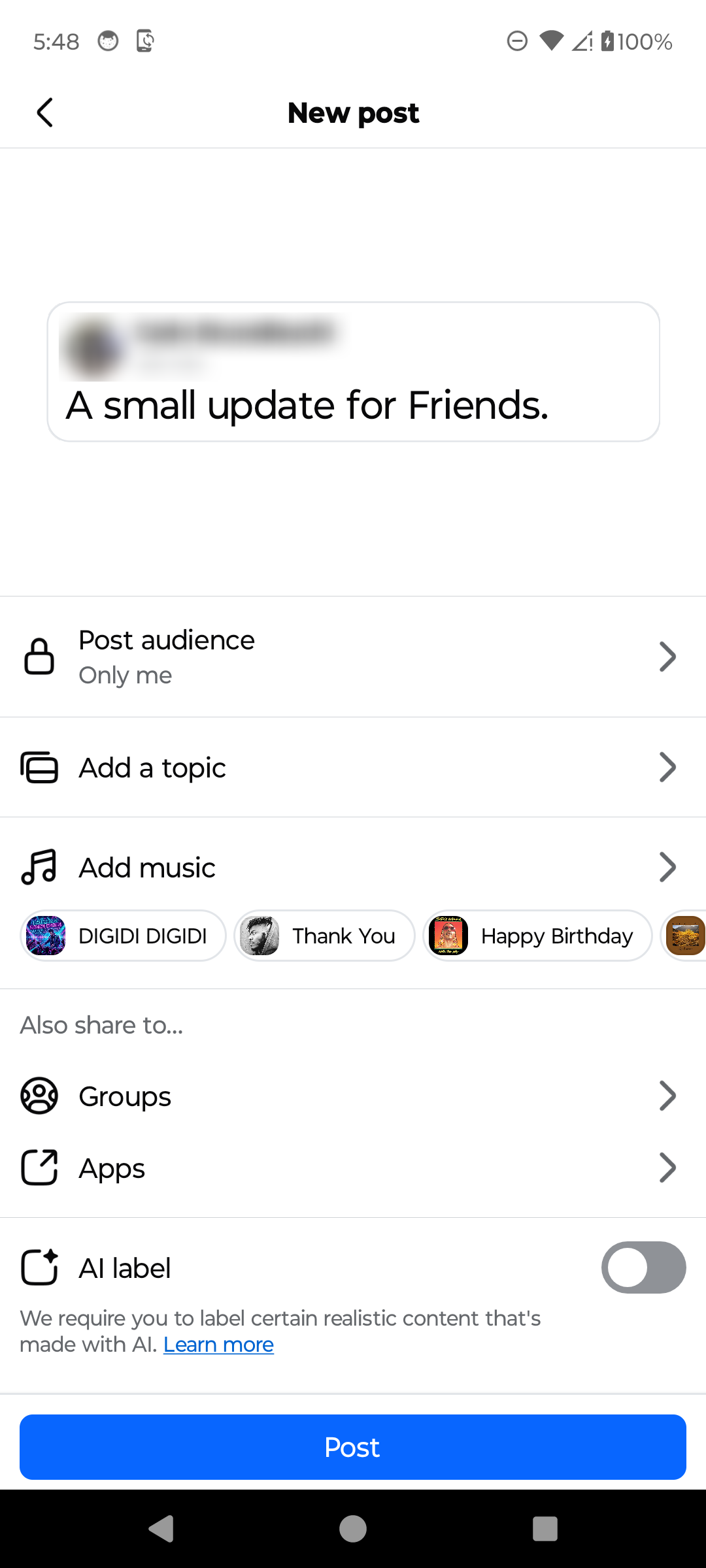
Open the current audience setting. · Tap to enlarge Choose Public
Select Public, which Facebook describes as anyone on or off Facebook. Leave Set as default audience off unless you also want to change the audience suggested for future posts, then tap Done.

Choose Public for a shareable post. · Tap to enlarge Review the Public label
Confirm that Post audience now says Public. Check the content again, then tap Post only when you are comfortable making it public.

Verify Public before publishing. · Tap to enlarge
A couple of useful details
Why is there no Share button on my Facebook post?
The post's audience may be limited to Friends, Only me, or another restricted group. Content type, profile settings, group rules, or the original creator's audience can also limit sharing.
Does Public mean everyone can see the post?
Facebook describes Public as anyone on or off Facebook. Do not use it for content that includes private details.
Will choosing Public change all my future posts?
Not necessarily. In the current Android flow, Set as default audience is a separate option. Leave it off to apply Public only to this post.
Can I change the audience after publishing?
Yes, when the control is available on your post. In the verified flow, open the post's three-dot menu, tap Edit Privacy, choose an audience on Who can see your post?, and tap Save.
Something not quite right?
Help us keep this guide accurate. A quick flag is enough.
Your report is sent to the Social How-To editorial team.