How to Post on Instagram: Photos and Videos
Choose a photo or video, edit it, add a caption, review the audience, and share it on Instagram.
Tap the plus button, keep Post selected, choose a photo or video, and tap Next. Edit the content, add a caption and optional tags or location, review Audience, then use the final Share button when you are ready.
Before you start
Check the selected account and review the photo or video for personal information. In the current Android app, choosing a video from the Post picker opens Instagram's Reel editor, while a photo continues as a regular feed post.
Follow the steps
Choose a photo or video
Tap the plus button, keep Post selected, choose content from your gallery, and tap Next. Use Select when you want a carousel.
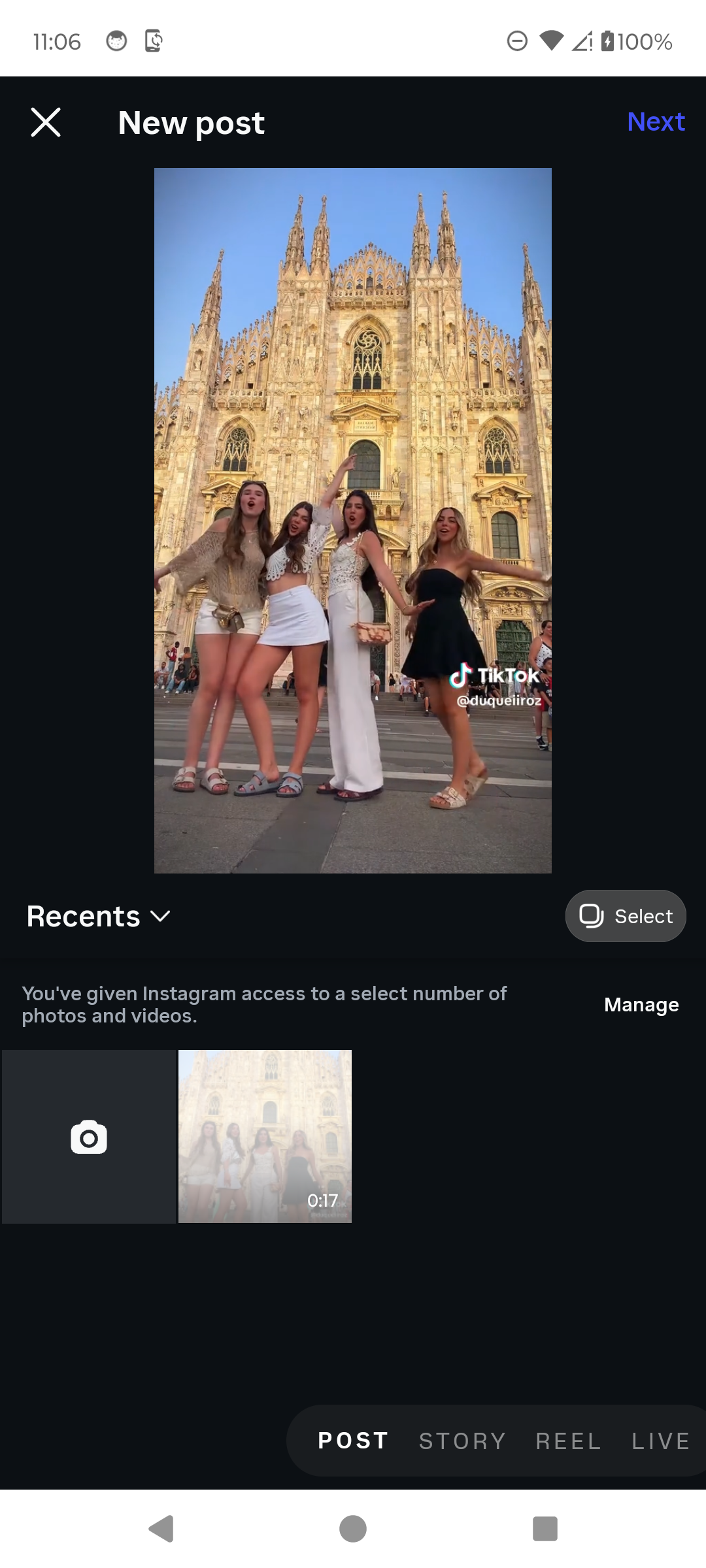
Choose the content for your post. · Tap to enlarge Edit and preview the content
Review the crop and use the available editing tools. Videos may open in the Reel editor, where you can trim the clip or add audio, text, captions, and stickers.

Edit and preview the content. · Tap to enlarge Add the post details
Write a caption, edit the cover if available, and optionally add hashtags, tags, or a location. Use the AI label when Instagram's description says it is required.
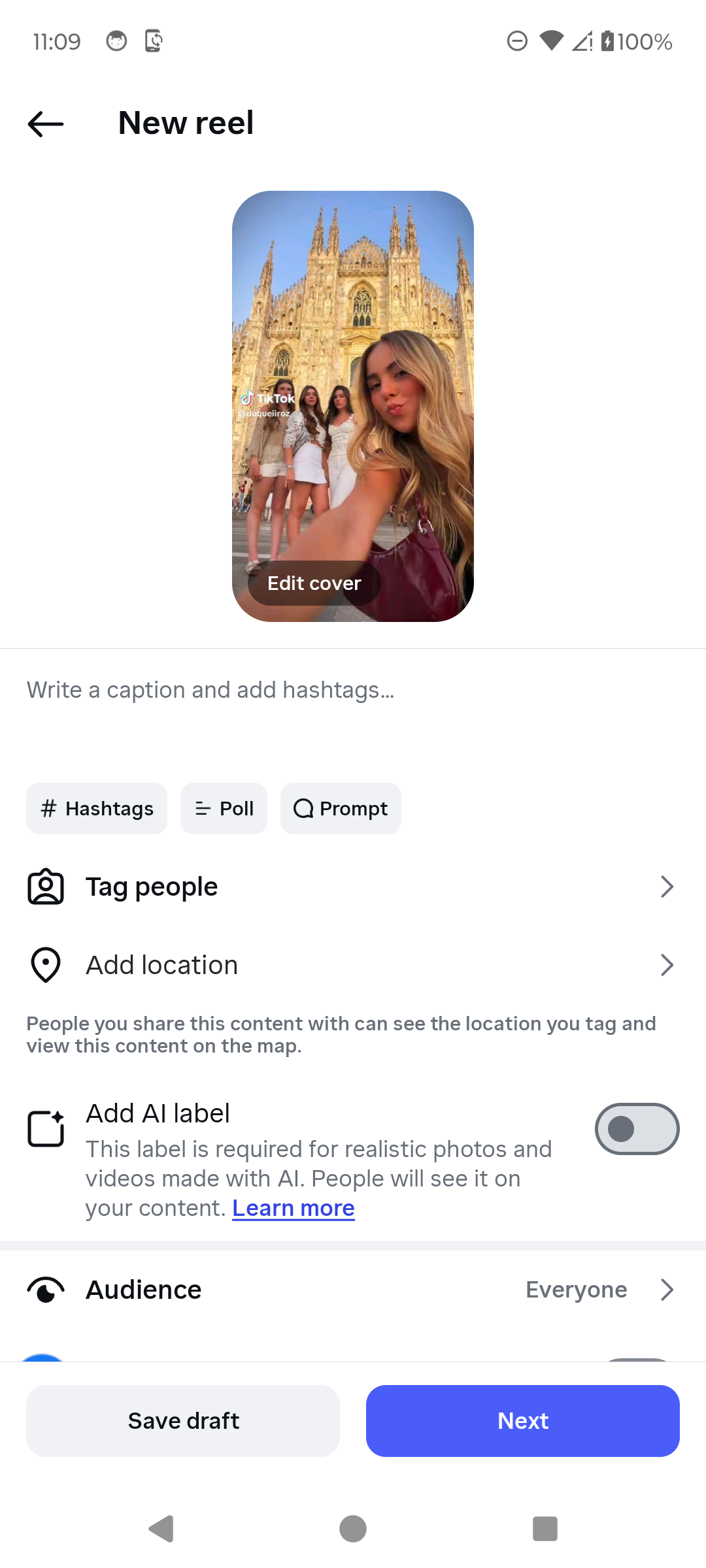
Add a caption and optional details. · Tap to enlarge Review the audience
Open Audience and choose who can see the content. For a Reel, also review whether it appears on your main grid and Reels grid.
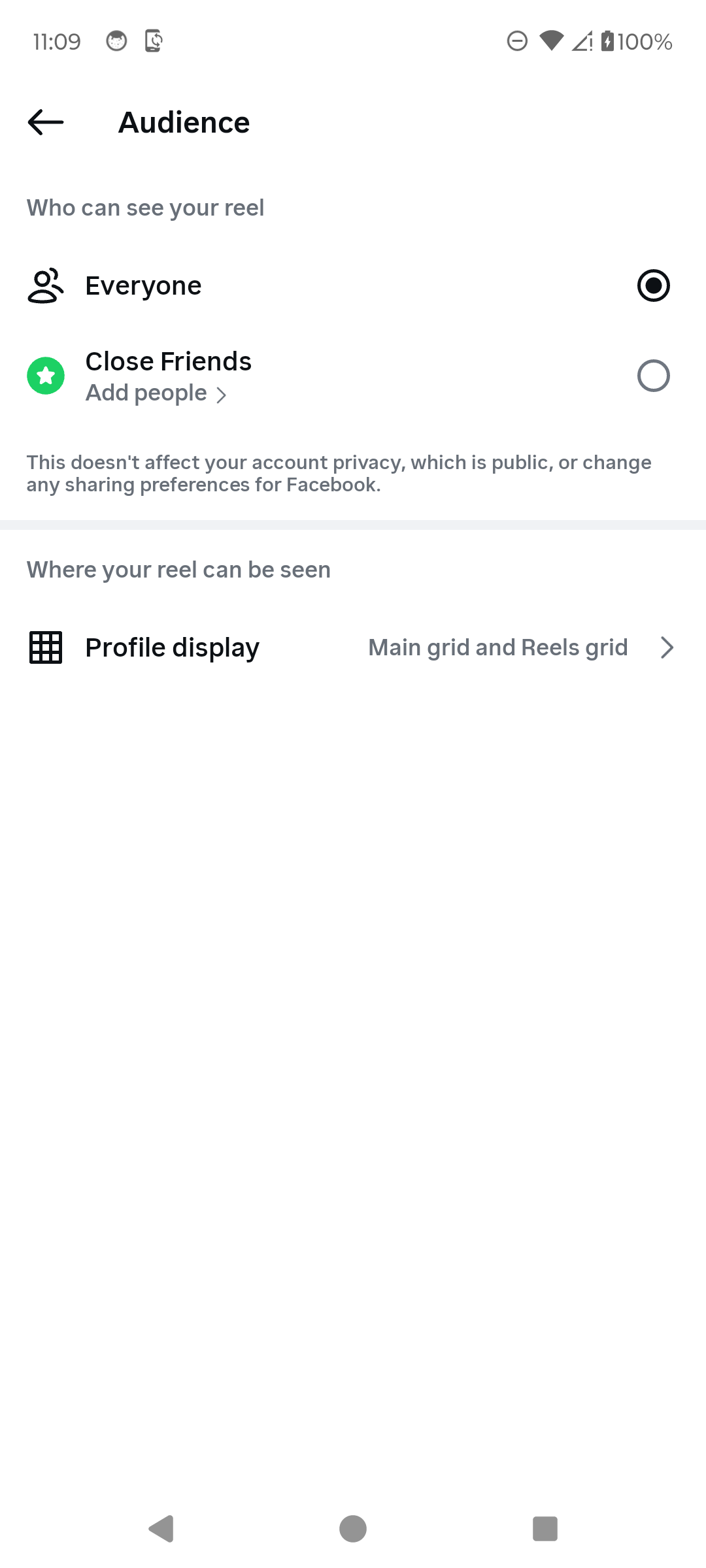
Choose who can see the post. · Tap to enlarge Read the final notice and share
Read Instagram's final visibility and reuse notice. Tap Share only when the audience and reuse settings are correct, or tap Cancel to go back.
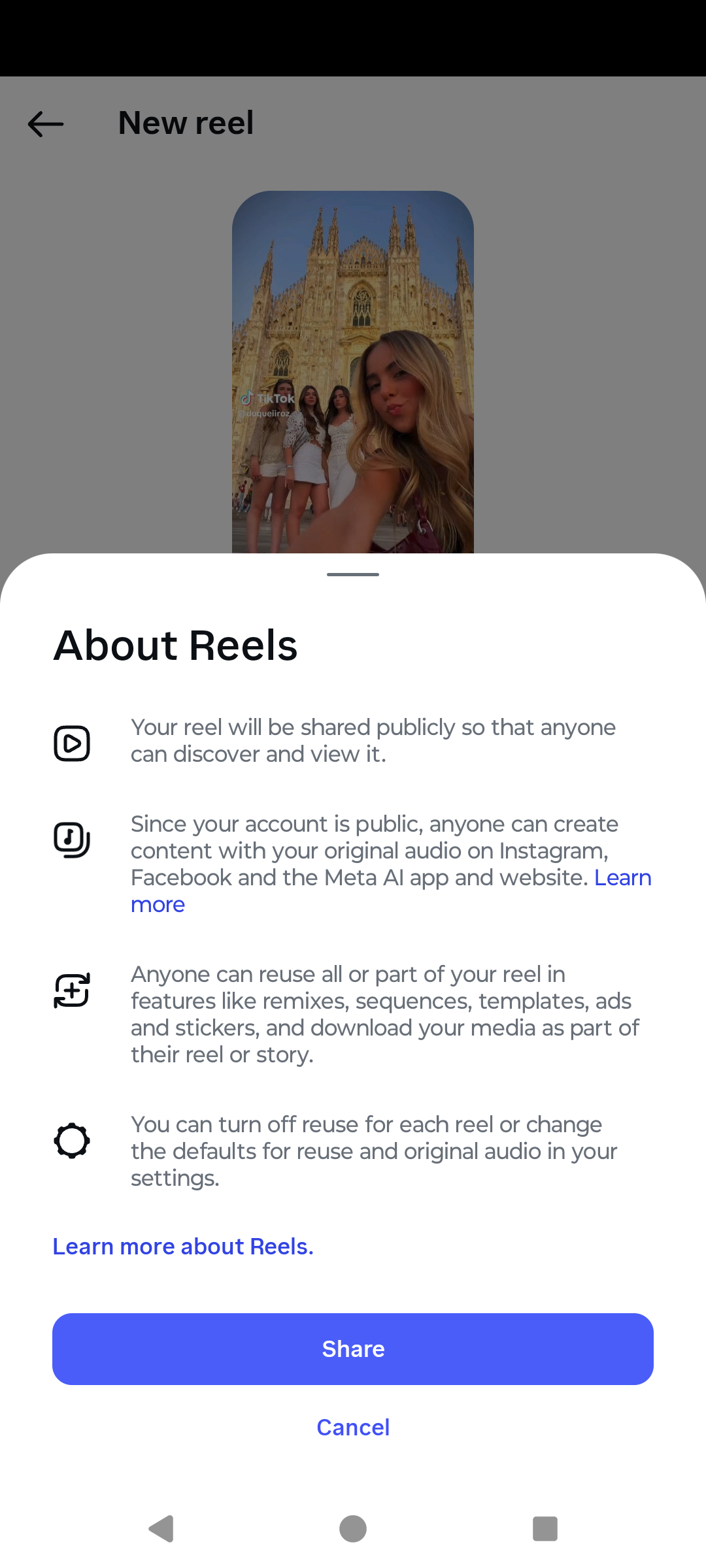
Confirm the final settings before sharing. · Tap to enlarge
A couple of useful details
Why does Instagram call my video a Reel?
In the current Android app, a video selected from the Post picker moves into the Reel editor. You can still choose whether it appears on your main profile grid from the Audience screen.
Can I post more than one photo or video?
Yes. Tap Select in the media picker, choose the items in the order you want, then continue. Instagram shows the group as a carousel.
Can I choose who sees the post?
Yes. Review Audience before sharing. Available choices depend on the content type and your account, and can include Everyone or Close Friends.
Do I need to add a location?
No. A location is optional and can reveal where the content was created or where you are. Add it only when that information should be public.
Can I save the post without publishing it?
Yes. Use Save draft on the details screen. Drafts remain in Instagram on that device until you publish or remove them.
Something not quite right?
Help us keep this guide accurate. A quick flag is enough.
Your report is sent to the Social How-To editorial team.