How to Repost on Instagram
Share a public Instagram post or Reel with your followers using Instagram’s built-in Repost button, without a third-party app.
Open a public post or Reel and tap the two-arrow Repost icon. Instagram can recommend the repost in your followers’ feeds and keeps it in a separate tab on your profile.
Before you start
The built-in button works with eligible public posts and Reels. If you do not see it, update Instagram and try another public post. Always keep the original creator’s credit intact.
Follow the steps
Find an eligible public post or Reel
Open the public post or Reel you want to share. Below the content, tap the two-arrow Repost icon between Comment and Share.
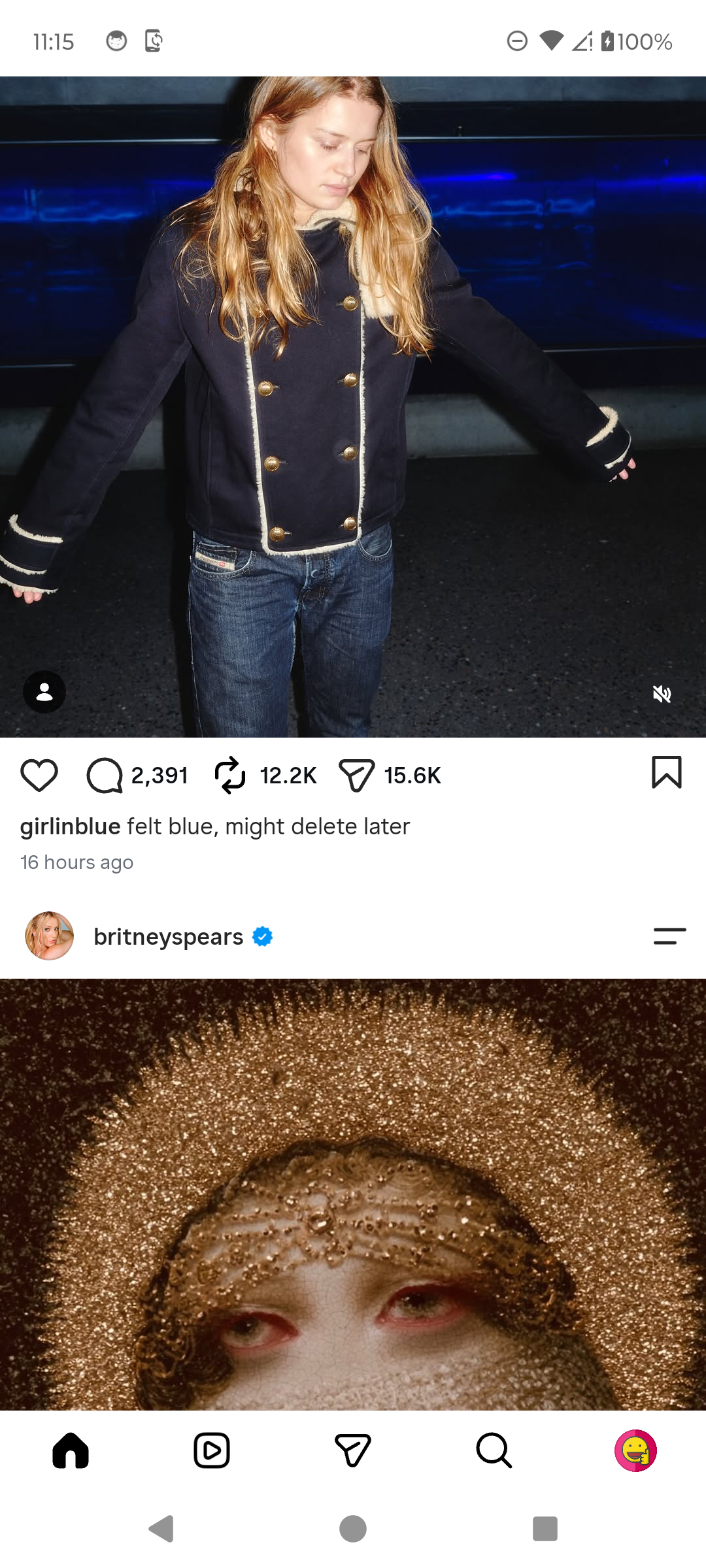
Find the Repost icon. · Tap to enlarge Read the confirmation
Instagram confirms the repost and explains that followers may see it in their feeds and that it appears in a separate profile tab. Close the message to keep it, or choose Undo.

Instagram confirms where the repost can appear. · Tap to enlarge Undo it when needed
Tap Undo in the confirmation to remove it immediately. Later, you can return to the original post and tap the active Repost icon again.

The inactive icon confirms that the repost was removed. · Tap to enlarge
A couple of useful details
Where does an Instagram repost appear?
Instagram may recommend it in your friends’ and followers’ feeds. Your reposts also appear in a separate tab on your profile.
Can I add something to a repost?
Yes. Instagram may show a thought bubble where you can add a short note before saving it.
How do I remove a repost?
Tap Undo in the confirmation, or return to the post and tap the active Repost icon again.
Something not quite right?
Help us keep this guide accurate. A quick flag is enough.
Your report is sent to the Social How-To editorial team.