How to Clear the TikTok Cache
Free temporary storage used by TikTok without deleting your account, posts, or drafts.
Open Profile, tap the menu button, choose Settings and privacy, then open Free up space under Cache & Cellular. Tap Clear next to Cache and confirm.
Before you start
TikTok lists Cache and Downloads separately. Clear Cache to remove temporary files. Do not tap Clear next to Downloads unless you also want to remove downloaded TikTok files from this device.
Follow the steps
Open your profile menu
Tap Profile at the bottom right, then tap the menu button at the top right.

Open your TikTok profile menu. · Tap to enlarge Find Free up space
Tap Settings and privacy, scroll to Cache & Cellular, then tap Free up space.

Open Free up space. · Tap to enlarge Clear the cache
Tap Clear beside Cache. Be careful to use the Cache row, because Downloads has a separate Clear button.

Tap Clear next to Cache. · Tap to enlarge Confirm
Tap Clear in the confirmation message. TikTok removes the temporary cache files.
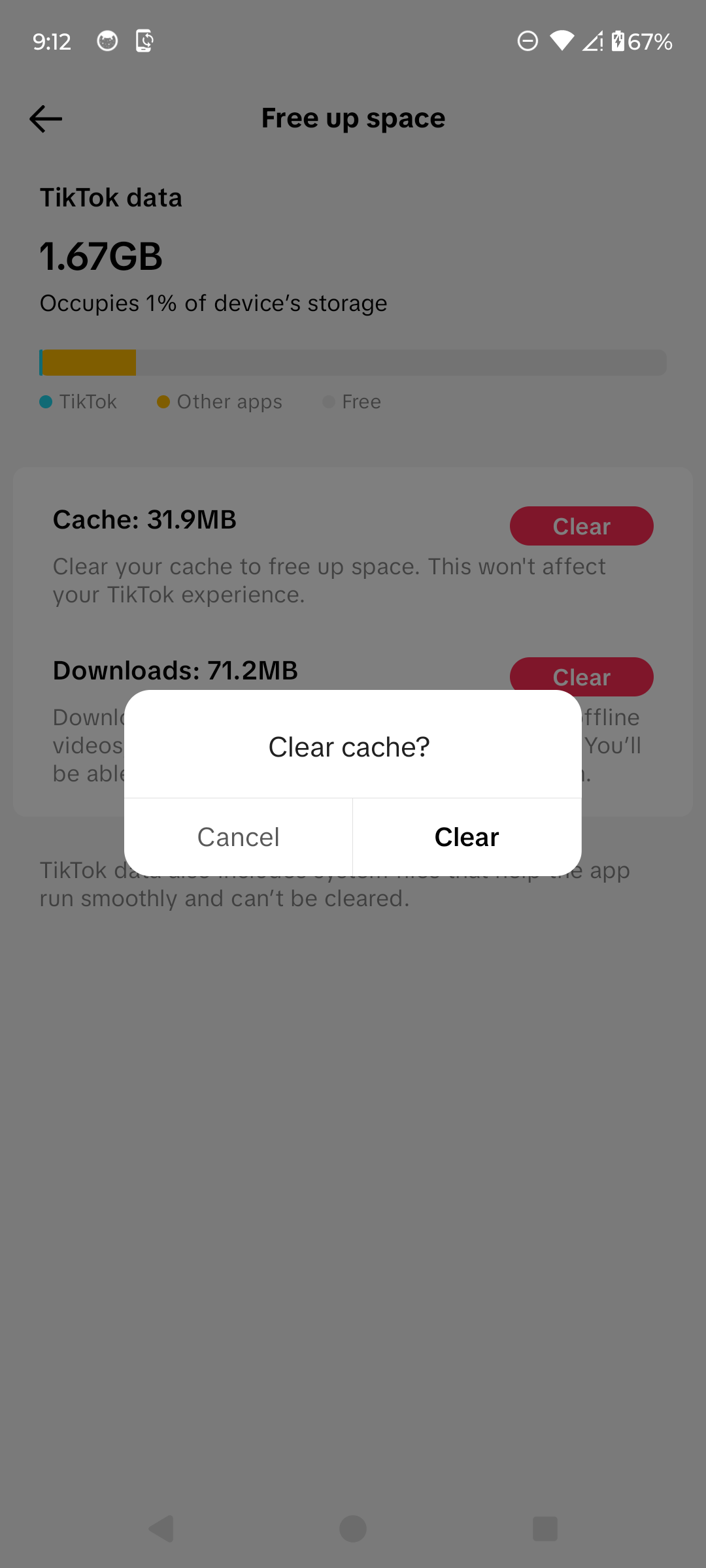
Confirm that you want to clear the cache. · Tap to enlarge
A couple of useful details
Does clearing the TikTok cache delete my account or posts?
No. It removes temporary files stored on the device. Your TikTok account, published posts, and profile remain available.
What is the difference between Cache and Downloads?
Cache contains temporary app files. Downloads contains effects, filters, stickers, and virtual gifts downloaded in TikTok, and it has its own Clear button.
Why does the cache size increase again?
TikTok creates new temporary files as you use the app, so the cache can grow again after you clear it.
Something not quite right?
Help us keep this guide accurate. A quick flag is enough.
Your report is sent to the Social How-To editorial team.