How to Remove a Repost on TikTok
Undo a TikTok repost without deleting the original creator's video.
Open the video you reposted, tap Share, then tap Delete repost or Remove repost.
Before you start
Removing a repost only removes your repost activity. It does not delete or change the original creator's video.
Follow the steps
Open the reposted video
Find the video you previously reposted. You can open it from the feed or from the repost tab on your profile, then tap Share.
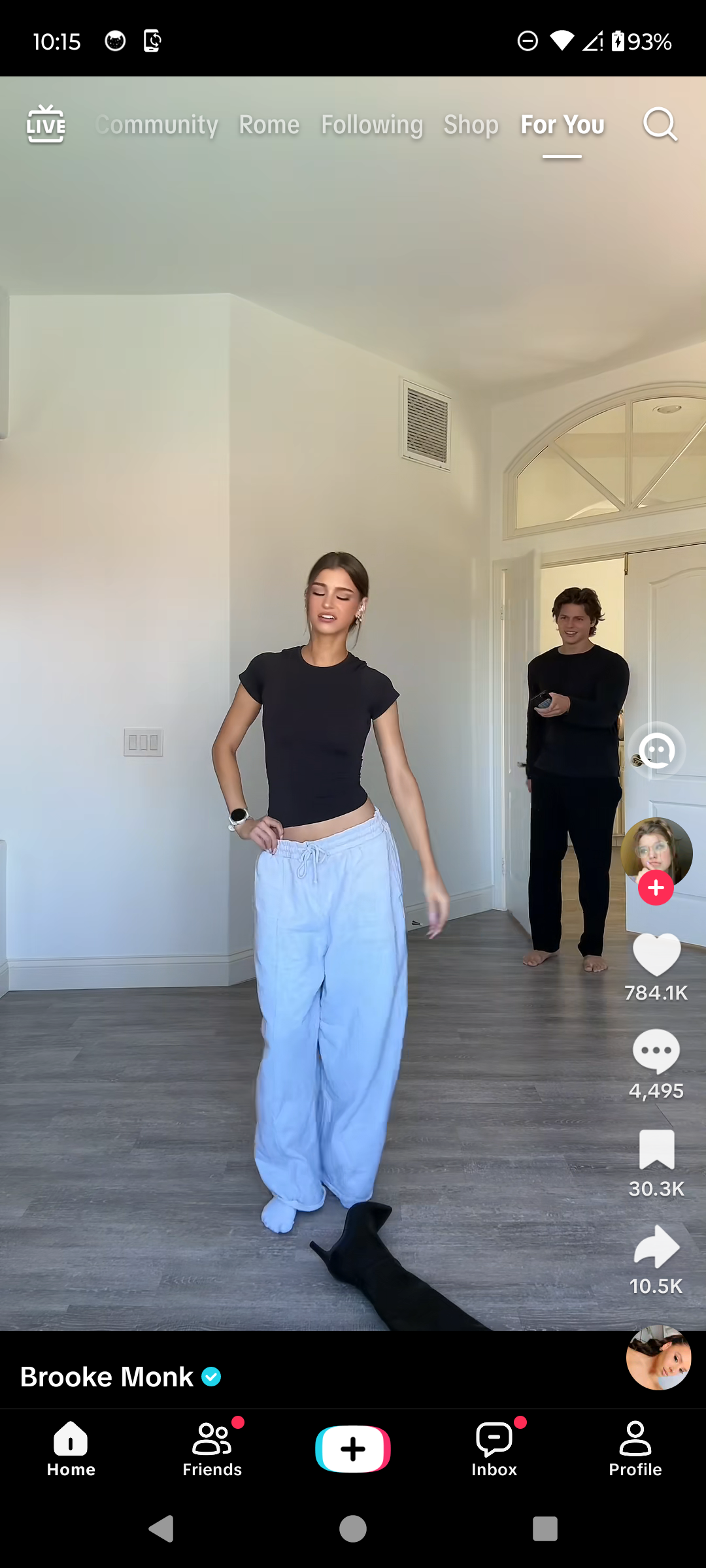
Open the reposted video and tap Share. · Tap to enlarge Tap Delete repost
In the sharing menu, tap Delete repost. TikTok's wording may also appear as Remove repost in other versions.
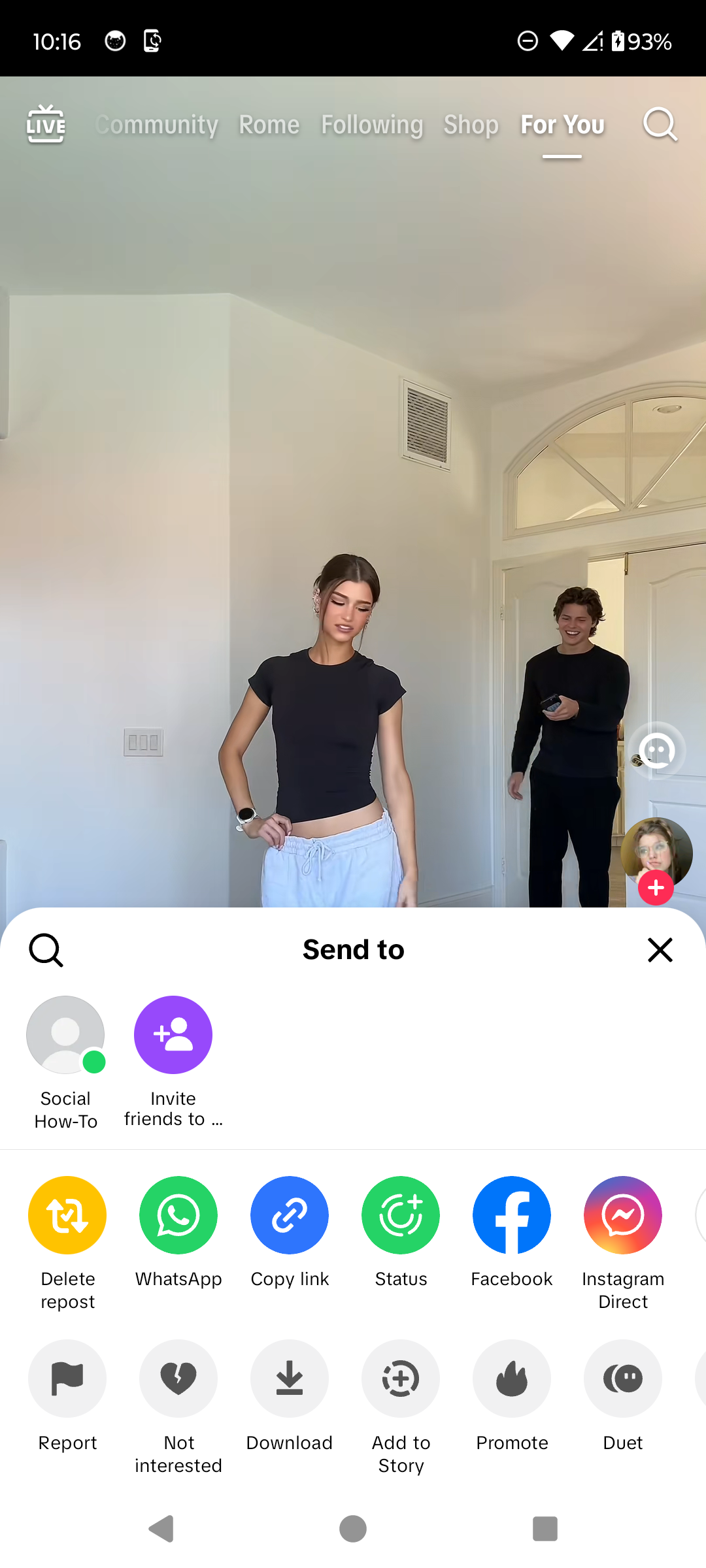
Tap Delete repost. · Tap to enlarge Check the confirmation
TikTok closes the menu and briefly displays Deleted. The video remains on TikTok, but it is no longer reposted by your account.
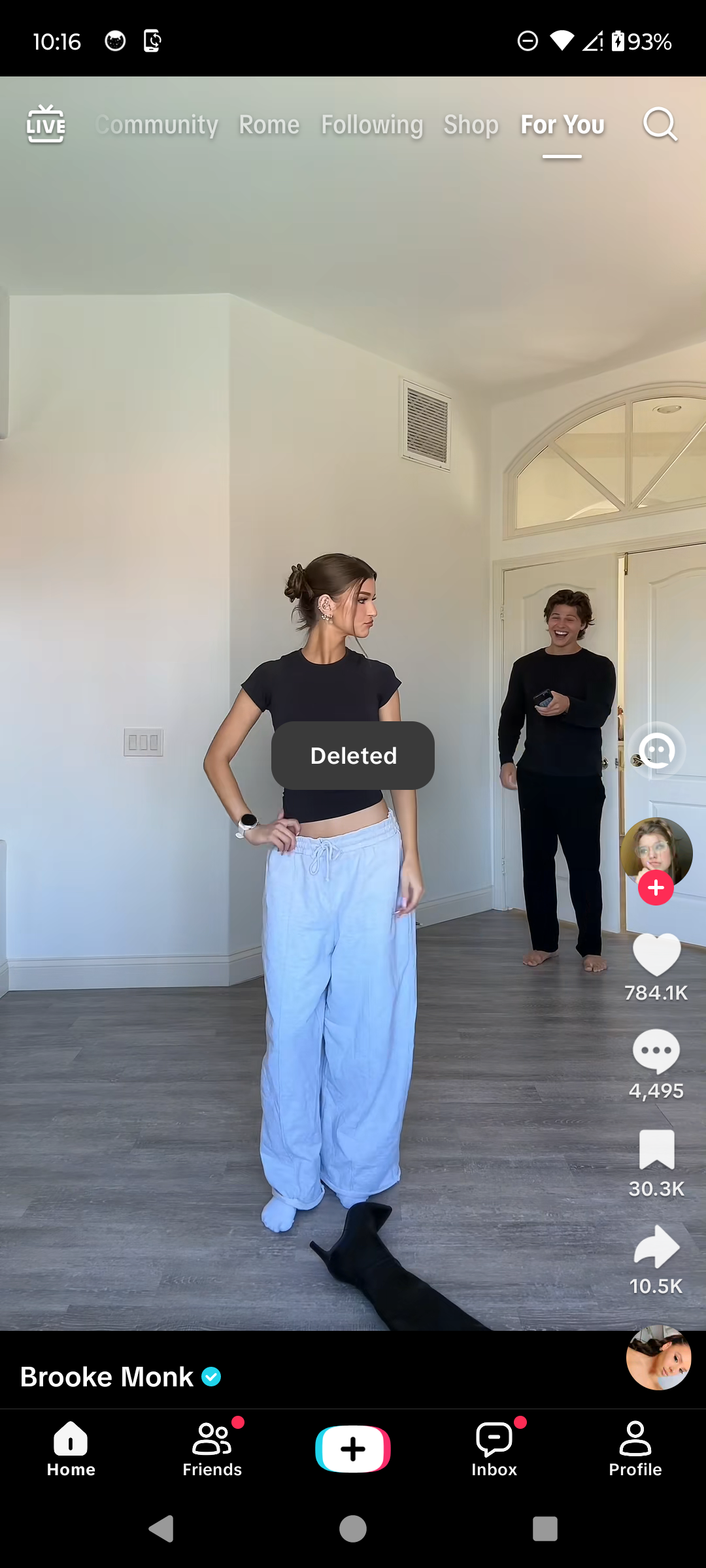
Confirm that the repost was removed. · Tap to enlarge
A couple of useful details
Does removing a repost delete the original video?
No. The original post stays on the creator's account.
Why does my app say Delete repost instead of Remove repost?
TikTok currently uses different wording in some app versions. Both controls undo your repost.
Where can I find videos I reposted?
Open your Profile and look for the repost tab. TikTok also says reposted videos can appear in the For You feed.
Can I repost the same video again later?
Yes, if the Repost option is still available for that video.
Something not quite right?
Help us keep this guide accurate. A quick flag is enough.
Your report is sent to the Social How-To editorial team.