How to Send Direct Messages on TikTok
Open your TikTok Inbox, find an eligible account, and send a private message while keeping message requests and safety controls in mind.
Tap Inbox, open an existing conversation or find an eligible account, type your message, and tap Send. Whether you can message someone depends on age, privacy settings, and the relationship between the accounts.
Before you start
TikTok says friends—followers you follow back—and accounts you follow can send messages directly to your inbox unless blocked. Other eligible people may appear as message requests. Messaging availability also depends on age and account settings.
Follow the steps
Open your Inbox
Tap Inbox at the bottom. Open an existing conversation, or use Find when TikTok offers it to locate an eligible contact.

Open Inbox to find your conversations. · Tap to enlarge Choose an account and send
Open an eligible conversation, type your message, and tap Send. If there is no conversation or Message button, the account may not be eligible under the current privacy or relationship rules.

Message availability depends on the account settings. · Tap to enlarge Find the Direct messages controls
To review your own settings, open Profile, the menu, Settings and privacy, then scroll to Direct messages under Interactions.
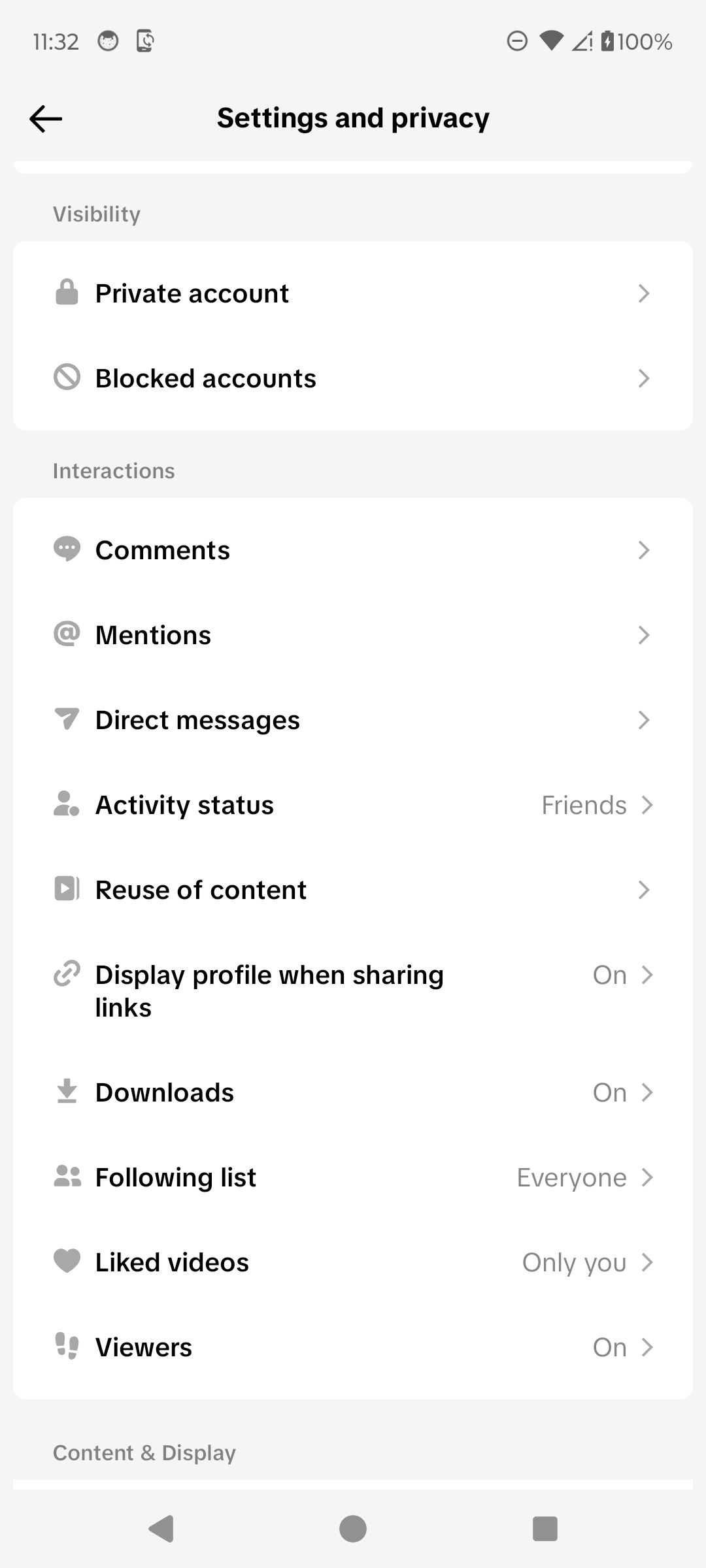
Open the Direct messages controls. · Tap to enlarge Review who can reach you
Open Permission settings. TikTok explains that friends and accounts you follow can message the inbox, while some other eligible connections send requests.

Check inbox and message-request permissions. · Tap to enlarge
A couple of useful details
Why can’t I message someone on TikTok?
Their privacy settings, your age or account status, or the relationship between the two accounts may prevent a direct message.
What is a message request?
A message from an eligible account outside your direct inbox can arrive as a request that you can review before replying.
Can I turn off read receipts?
TikTok includes a Read status control under Direct messages. Read receipts apply when both people have the feature turned on.
Something not quite right?
Help us keep this guide accurate. A quick flag is enough.
Your report is sent to the Social How-To editorial team.