How to Create a Facebook Page
Create a Facebook Page, choose a clear name and category, and review the setup before publishing it.
Open Menu, tap Pages, and choose Create. Select Create a new Page, enter the Page name, tap Next, choose the category that best describes it, and tap Create when you are ready.
Before you start
Decide on a name that accurately represents the business, brand, organization, or public presence. Choose a category people will understand and make sure you are allowed to represent the subject of the Page. You can add more details after creation.
Follow the steps
Start a new Page
Open Menu, tap Pages, and choose Create. Select Create a new Page to begin a separate public presence.
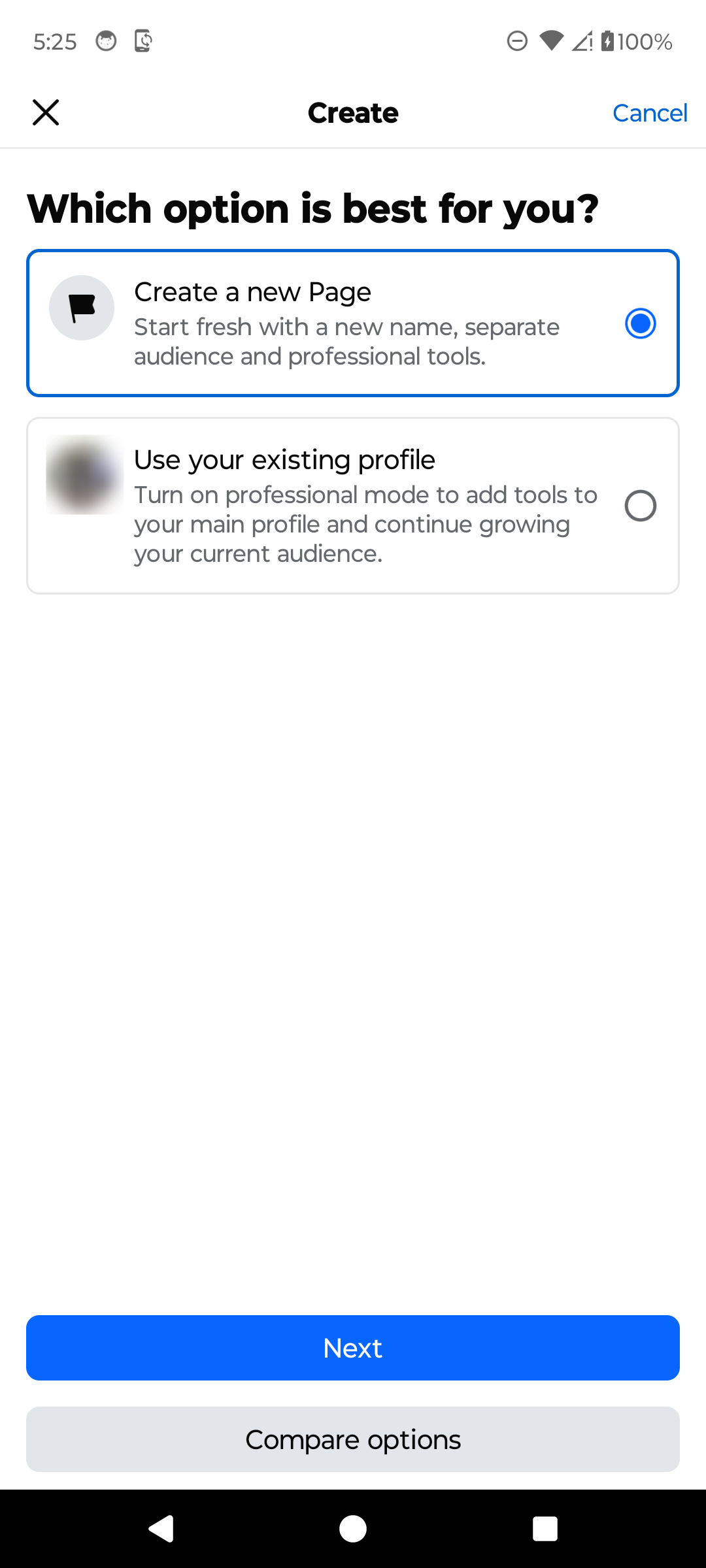
Choose Create a new Page. · Tap to enlarge Enter the Page name
Type the name people will use to find the Page. Check the spelling and make sure it accurately represents the subject, then tap Next.

Enter a clear and accurate Page name. · Tap to enlarge Choose a category and create
Select the category that best describes the Page. Review Facebook's Page policies, then tap Create when the name and category are correct.

Choose the best category and review before creating the Page. · Tap to enlarge
A couple of useful details
Do I need a separate Facebook account for a Page?
No. You can create and manage a Page from your existing Facebook account. Facebook also lets you switch into the Page after it is created.
Can I change the Page name later?
Facebook provides a Page-name change process, but changes are reviewed and may be limited. Choose an accurate, durable name at setup.
How many categories can I add?
The current Android flow asks you to choose one category during setup and says you can add two extra categories later to improve search results.
Is a Facebook Page public?
Pages are designed as public presences. Review the Page details, contact information, posts, and access permissions before promoting it.
Something not quite right?
Help us keep this guide accurate. A quick flag is enough.
Your report is sent to the Social How-To editorial team.