How to Temporarily Deactivate Facebook
Take a break from Facebook without permanently deleting your account. Your main profile is hidden until you reactivate it.
Open Settings, enter Accounts Center, choose Manage accounts, open Deactivation or deletion, then select Deactivate account and continue.
Before you start
Deactivation is temporary. Facebook says your main profile will be hidden from most places while Messenger can remain available. Review any Pages you manage before continuing.
Follow the steps
Open Facebook settings
Tap Menu at the top left, expand Settings and privacy, then tap Settings.

Open Facebook settings. · Tap to enlarge Open Accounts Center
Tap Accounts Center near the top of Settings.
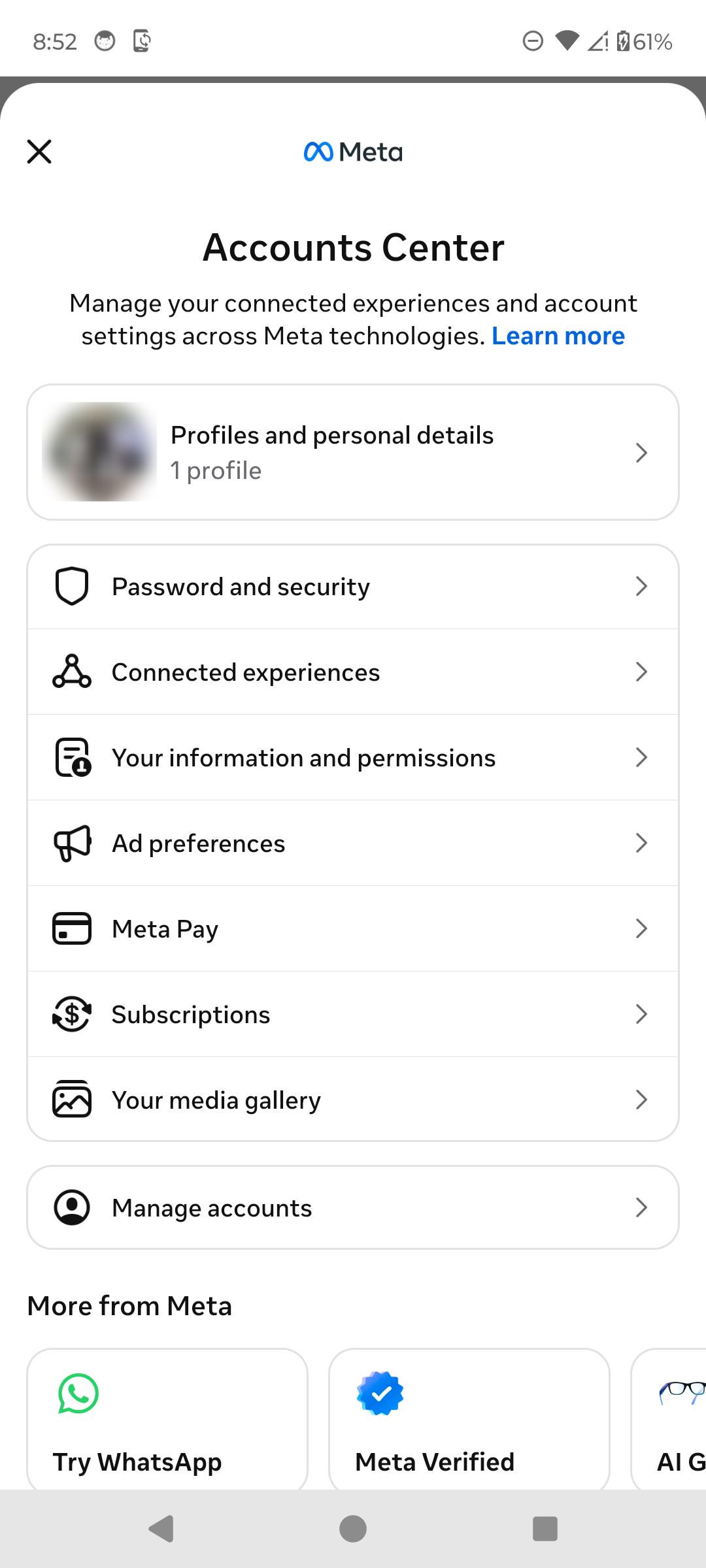
Open Accounts Center. · Tap to enlarge Manage your Facebook account
Tap Manage accounts, then tap Manage next to your Facebook account.

Manage your Facebook account. · Tap to enlarge Open Deactivation or deletion
Tap Deactivation or deletion.

Choose Deactivation or deletion. · Tap to enlarge Choose Deactivate account
Select Deactivate account, tap Continue, then follow the confirmation steps. Your account remains available until you complete those steps.

Choose Deactivate account, then continue. · Tap to enlarge
A couple of useful details
Can I reactivate Facebook later?
Yes. Sign back in to Facebook when you want to reactivate the account.
Can I keep using Messenger?
Facebook currently says Messenger can remain available when the account is deactivated. Review the confirmation screen for your account.
Is deactivation the same as deletion?
No. Deactivation is temporary. Deletion permanently removes the account and its content after the cancellation period.
Something not quite right?
Help us keep this guide accurate. A quick flag is enough.
Your report is sent to the Social How-To editorial team.